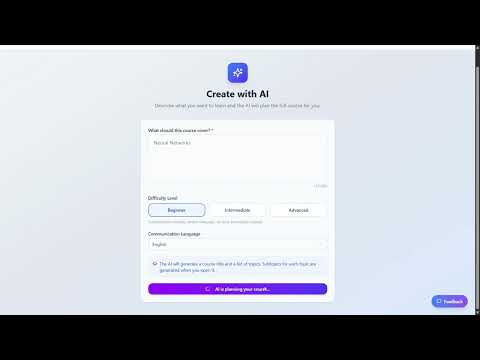
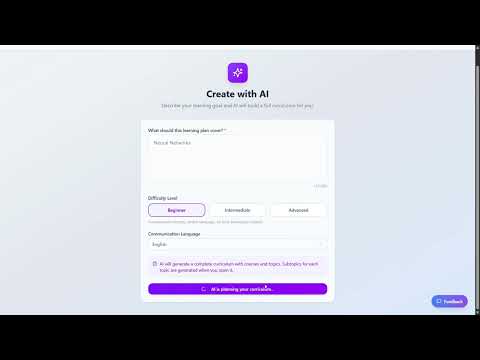
Everything you need to go from curiosity to mastery. Find answers, learn strategies, and take control of your learning journey.
🗺️ Start the Guided Learning Journey
Let the app walk you through your first topic end-to-end — create, learn, quiz, and exam.
🚀
Quick Start
Sign up, personalize your profile, and create your first topic in under 5 minutes.
2 articles
📄
Your Own Notes
Exactly what you can upload, what it costs, and why a file sometimes will not go through.
1 article
🧭
Choosing a Tool
The questions worth asking before you commit, which mode to start in, and where we are not the right choice.
2 articles
💡
Explain Mode
Understand bite-sized chunks, charts, callouts, and knowledge checks.
1 article
🎯
Quiz Mode
Handle different question types, use the "I Don't Know" button, and read your score breakdown.
1 article
⌨️
Code & Maths
Studying programming docs, technical material and formulas — and where audio stops being the right tool.
2 articles
💳
Credits & Payments
How the credit model works, what the free start covers, and what to do if checkout fails.
3 articles
🔒
Security & Trust
Data isolation, secure payments, multi-factor authentication, and what happens to what you upload.
2 articles
🔍
Accuracy & Honest Study
What to do when the AI gets something wrong, how to keep it anchored to your own material, and where the line on cheating sits.
1 article
⏱️
Learning Strategies
Research-backed methods to maximize retention — plus deadline sprints, learning for work, and rehearsing an interview.
8 articles
🎧
Listen & Talk
Turn a topic into a podcast, have it read aloud, or talk it through out loud.
4 articles
🌐
Languages
Three separate language settings, studying in one language from material written in another, and learning a language itself.
3 articles
🏅
Certificates
Earn a certificate from an exam, course or learning plan, let anyone verify it, and know what it is and is not worth.
2 articles
Popular Questions
How do I create my first learning topic?▸
You have two methods: Describe Topic (describe what you want to learn in your own words) or Upload Resources (upload documents, presentations, or images). Read the full guide →
How much does Learning Clarity cost?▸
Learning Clarity uses a credit-based model — you only pay for what you use. You receive free credits when you sign up, and additional credit packages start at $7.99 for 4,500 credits. See all pricing tiers →
What languages are supported?▸
Learning Clarity is multilingual in three ways: the interface supports 7 languages (switchable from your Profile), you choose your explanation and quiz language during topic creation, and uploaded material can be in any language — even different from the language you study in. Learn more →
Is my data safe?▸
Yes. Learning Clarity uses Row-Level Security so you can only access your own data, all traffic is encrypted via HTTPS, passwords are cryptographically hashed, and payments are processed through Stripe. Read the full security overview →
Is there a referral program?▸
Yes. When you refer someone and they make their first credit purchase, you receive 10% of the credits they bought as a bonus. Learn more about credits & referrals →
Can I turn my topic into a podcast?▸
Yes. Any topic or subtopic can become an audio episode — a host interviewing an expert guest, in the language your content is written in. Most episodes are ready in about 30 to 60 seconds, and you can download them as MP3. How podcasts work →
How do I earn a certificate?▸
Pass an exam with 70% or higher that covers every subtopic in the topic and has at least 30 questions — or finish every topic in a course, or every course in a learning plan. Certificates are free, and anyone can verify one without signing in. About certificates →
All 45 Articles
Every article in the help centre, grouped the way the sidebar groups them.
Most tools in this category look alike from the outside. The differences that matter are whether it works from your own material, whether it tests you or only summarises, and whether anything survives the session. Here are the questions worth asking, an honest account of where we fit, and where we are not the right choice.
💬
Every tool in this category claims to do everything. The useful question is not which is best, but which of them does the specific thing you are stuck on.
Six Questions Worth Asking of Any Tool
These separate the products in this category far better than feature lists do. Ask them of us too.
Does it work from your material, or from the internet? Being examined on your lecturer's chapter is different from being taught the subject in general.
Does it test you, or only summarise? Summaries feel productive and teach very little. Being made to produce answers is what moves knowledge.
Does anything survive the session? A chat you have to re-explain yourself to each time is a different tool from one that remembers where you stopped.
Can you prove any of it afterwards? Most tools produce nothing a third party can check.
Does it work in your language — properly? Interface translation is not the same as being taught, quizzed and examined in your language.
What does it cost when you use it heavily? Monthly plans and pay-per-use behave very differently for a learner who studies in bursts.
Where We Fit
Learning Clarity is strongest when you already have material and a deadline. You upload or describe it, it becomes a roadmap of subtopics, and from there the product is built around being tested rather than being told: knowledge checks inside every explanation, quizzes, timed exams with a mastery report naming your weak areas, and an examination history. On top of that sit the things almost nobody else in this category does — a two-voice podcast episode of your own material, a spoken conversation that has already read it, read-aloud, and a certificate with a public verification link. Seven languages, with the language you study in set separately from the language your material is in.
Where We Are Not the Right Choice
Worth knowing before you spend anything. If one of these is your core need, another tool will serve you better:
You want a flashcard deck — there are no flashcards and no Anki import or export. Quiz Mode and knowledge checks do the same job, but they are not cards and you cannot take them elsewhere.
You want to upload recorded lectures — audio and video cannot be uploaded. Slides, PDFs, images and text only.
You want a bank of real past exam questions — for professional exams such as medical SBAs, questions here are generated from the material you supply. That is useful for understanding, and it is not the same as drilling a curated bank of real past papers.
You need an accredited qualification — our certificates are verifiable but not accredited, carry no academic credit and are not a licence.
You want a permanently free tool — there is a free start of 500 credits, but sustained use is paid, and uploading your own files needs 1,000 credits before it will run.
✅
If you only need a one-off answer or a quick summary, a free general assistant is genuinely the better tool and we would rather say so than sell you credits you do not need.
Using It Alongside Other Tools
Most people use more than one thing, and that is sensible rather than a failure of any of them. A common shape: a general assistant for quick questions while reading, a dedicated tool for the structured pass through your own material and the testing, and a flashcard app if you like cards for pure recall. What we are trying to be good at is the middle part — turning a pile of material into a sequence you can work through and be measured on.
Frequently Asked Questions
What is the best AI study tool right now?›
There is no single answer, and anyone ranking themselves first is not a reliable source — us included. Ask the six questions above about whichever tools you are weighing: does it use your own material, does it test you, does anything persist, can you prove it, does it work in your language, and what does heavy use cost.
How is this different from a notebook-style tool that turns a PDF into an audio overview?›
The audio overlaps — we also produce a two-voice episode from your material. The difference is what surrounds it: a roadmap of subtopics that remembers your progress, quizzes and timed exams generated from the same material, a mastery report naming weak areas, and a verifiable certificate. If an audio summary is all you want, that is a narrower need than this is built for.
Why not just use a general chat assistant?›
For a single question, use one. The difference here is persistence and testing: material you supply becomes a structured roadmap, you are examined on it with a report of what you do not know, and there is a record afterwards. A general assistant answers and forgets.
Can I use this alongside other tools?›
Yes, and most people do. A common split is a general assistant for quick questions, this for the structured pass through your own material and the testing, and a flashcard app if you prefer cards for recall.
Is this good for professional exam prep with past-paper question banks?›
Partly. Questions are generated from the material you upload rather than drawn from a bank of real past papers, so it is strong for understanding a syllabus and finding your weak areas, and it does not replace drilling an official question bank if your exam is best prepared that way.
What if I try it and it is not right for me?›
Nothing recurring is charged, so there is nothing to cancel. Unused credits stay on your account and everything you created remains accessible.
You have a goal. Maybe it's a certification, a school exam, or something you've been meaning to learn for years. Here's how to stop wondering and start moving — today.
💬
Tired of 47 open tabs and zero progress? In the next 5 minutes, you'll have a structured learning plan built by AI — no planning required on your part.
Learning Clarity
4203 Credits+ Add Credits
Start Your Learning Journey
Create a new topic or continue where you left off
Start Learning
My Learning Topics
FIU360: The AI-Powered Future of Financial Intelligence
Created By Uploaded Materials
27 sub-topics · 0 completed
Interpol-Style Fraud Detection Methodology (2025)
I want to learn the Interpol fraud detection…
20 sub-topics · 0 completed
Your Dashboard — mission control for every topic you're studying
Step-by-Step Setup
1Create Your Account
Head to learningclarity.ai and click "Create your account." You can sign up with your email, or use Google, Microsoft, or Apple for one-click access.
The win: You now have a dedicated space that remembers everything you learn. No more scattered notes.
2Personalize Your Experience
During onboarding, you'll provide your date of birth and language preference. This isn't busywork — the AI uses your age to adapt its teaching style (simpler visuals and friendlier tone for under-18 learners, more advanced presentation for adults) and sets the interface to your preferred language.
The win: The app speaks your language — literally. Everything from explanations to quizzes will feel like it was built for you.
3Create Your First Topic
Tap "New Topic" and choose one of two methods:
Describe Topic — Describe what you want to learn in your own words.
Upload Resources — Upload documents, presentations, images, or any study material.
The win: You now have a clear plan. No more staring at a mountain of material and wondering where to start.
Learning Clarity
← Back to Dashboard
📖 FIU360: The AI-Powered Future of Financial Intelligence
Created By Uploaded Materials
Overall Progress0%
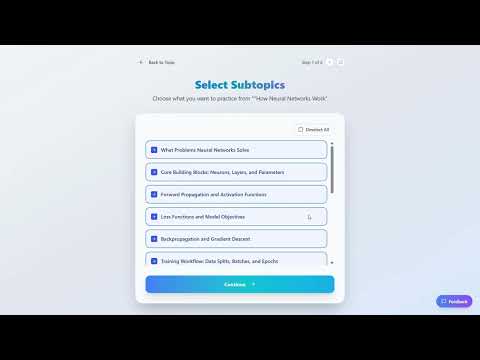
Select Sub-topics to Learn
✓
#1Financial Intelligence Unit Operations and AML/CFT Context
✓
#2FIU360 Platform Overview
✓
#3Unified Core Architecture
✓
#4Registration Module
✓
#5Data Collection
▷ Start Explain Mode
✦ Start Quiz Mode
Your topic's sub-topics — choose which to study, then pick Explain or Quiz Mode
4Learn with Explain Mode, Prove It with Quiz Mode
Open a sub-topic and enter Explain Mode to read through bite-sized chunks with interactive charts and knowledge checks. When you feel ready, switch to Quiz Mode to test yourself with adaptive questions.
The win: You don't just read — you prove you understand. That's the difference between hoping and knowing.
✅
You've set up your account, personalized it, and created your first topic. From here, the AI handles structure — you handle curiosity. Be the student with a plan.
Two ways to feed the AI. Pick the one that matches where you are right now.
💬
You know that feeling — pages of notes, a textbook, maybe a PDF from a lecture — but no idea what to focus on first? That ends here.
Learning Clarity
← Back to Dashboard
📖
Create Learning Topic
Start your learning journey by creating a new topic
⬆
Upload Resources
Upload documents, presentations, or images to create a topic
Supported: PDF, Images (PNG/JPG), Text
📝
Describe Topic
Tell us what you want to learn and we'll generate content for you
Quick & easy way to get started
Choose how to create your topic — Upload materials or describe what you want to learn
Method 1: Describe Topic
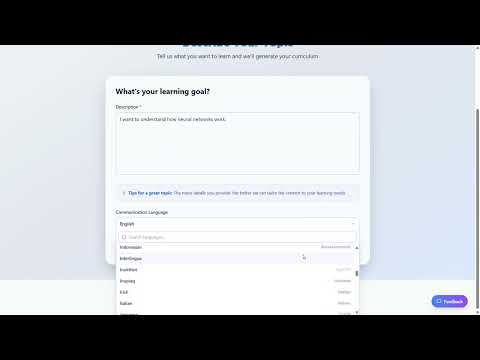
Best when you have a concept in mind but no formal materials yet. Simply describe what you want to learn — for example, "I want to understand how neural networks work" or "Prepare me for the AWS Solutions Architect exam."
The AI will generate a structured roadmap of sub-topics, ordered from foundational to advanced. Each sub-topic becomes its own learning module.
✅
Be specific. "Machine Learning" is broad. "Supervised learning algorithms for classification tasks" gives the AI a sharper target.
Method 2: Upload Resources
Have a PDF, lecture notes, or a study guide? Upload it. The AI reads your material and extracts the key sub-topics automatically — no highlighting, no re-reading, no decision fatigue.
This is especially powerful when you have course materials but no clear structure. The AI builds the roadmap so you can stop guessing and start moving.
ℹ️
Supported formats include PDF files and plain text documents. The AI processes the content to identify discrete, learnable sub-topics.
✅
Uploading resources uses significantly more credits than describing a topic, because the AI needs to read, analyze, and structure your entire document. If you're watching your credit balance, consider using Describe Topic for straightforward subjects and saving uploads for complex material where the document itself adds real value.
Choosing Your Explanation & Quiz Language
During topic creation, you'll be asked to select the language for your explanations and quizzes. This is the language the AI will use to teach you — all Explain Mode content, knowledge checks, and Quiz Mode questions will be generated in this language.
This setting is independent of your interface language and your source material. For example, you can upload a textbook in English but choose to receive explanations in German. The AI reads the original material and teaches you in the language you selected.
Topic Setup
Choose Your Learning Language
Select the language for explanations and quizzes
🇬🇧
English
English
🇪🇸
Spanish
Español
🇫🇷
French
Français
🇩🇪
German
Deutsch
🇮🇹
Italian
Italiano
🇵🇹
Portuguese
Português
🇸🇦Arabic (العربية) also available
Continue with Deutsch →
Language selection during topic creation — choose the language for your AI-generated explanations and quizzes
ℹ️
Pick the language you think in. Learning in your native tongue helps you focus on understanding the subject itself rather than translating as you go. For more on how language support works across the platform, see Languages & Accessibility.
What Happens After You Create a Topic?
Regardless of which method you choose, the AI breaks your subject into bite-sized sub-topics. You'll see your entire roadmap laid out — no more guessing what comes next. The sequence is built in.
From here, you choose how to engage with each sub-topic:
📖
Explain Mode — The AI teaches you each sub-topic step by step, breaking complex ideas into clear, digestible chunks with visuals, examples, and built-in knowledge checks along the way. Think of it as having a tutor walk you through the material at your own pace. Learn more →
🎯
Quiz Mode — Test what you've learned with AI-generated assessments. Choose your difficulty level, number of questions, and question types — then get instant feedback with detailed explanations for every answer. It's how you turn "I think I understand" into "I know I do." Learn more →
You can use both modes in any order. Many learners start with Explain Mode to build understanding, then switch to Quiz Mode to validate their knowledge — but the choice is yours.
✅
You're not someone "trying to figure it out" anymore. You're the student with a structured plan. That's a different person — and they get different results.
Watch: How to Create Your First Topic
Watch Tutorial
ℹ️
Everything about what you can upload, the size limits, and what to do when a file will not go through: Studying From Your Own Notes
Upload your own PDFs, images or text files and Learning Clarity reads them, pulls out the sub-topics, and builds a roadmap you can study, test yourself on, sit an exam on, or turn into a podcast. This page covers exactly what you can upload, what it costs, and what to do when a file will not go through.
💬
The material you were given is the material you will be examined on. Studying a general summary of the subject is not the same as studying the chapter your lecturer actually set.
What You Can Upload
Open Create Topic and choose Upload Resources. You can select several files at once, and they are read together as a single body of material.
PDF — up to 40 MB per file.
Images (PNG, JPG, JPEG) — up to 10 MB each, and at most 7 images in one upload.
Plain text (.txt) — up to 5 MB per file.
Everything together — up to 50 MB in a single upload.
What You Cannot Upload
Word documents and PowerPoint slide decks cannot be uploaded directly. Save or export them as PDF first — every word processor and presentation tool offers this from its File menu — and the PDF uploads normally.
What It Costs, and the One Thing to Know First
Building a topic from uploaded material needs a balance of at least 1,000 credits before it will start. Signing up gives you 500 free credits, so the upload route is not available on the starter balance on its own.
✅
Describing a topic in your own words needs only 50 credits. If you are still on your free credits, start there — you can upload material into a new topic once you have topped up.
When a File Will Not Go Through
A scanned or photographed page — a PDF that is really a picture of a page has no text layer to read. If you cannot select the text in a PDF reader, neither can we. Export a version that contains real text, or upload the original document the scan was made from.
A password-protected PDF — remove the protection and upload it again.
Too large — split a long document into parts and build a topic from each. Smaller topics also produce sharper sub-topics.
Too many photos — more than 7 images in one upload is refused. Send them in batches.
What Happens After the Upload
Your material is read and broken into sub-topics, and from then on it behaves like any other topic — Explain Mode walks you through it, Quiz Mode and Exam Mode test you on it, and it can be read aloud, turned into a podcast episode, or talked through out loud.
How This Differs From Asking a General AI Chat
A general assistant will happily summarise a document you paste in, and for a quick answer that is often enough. The difference is what survives the conversation: here your material becomes a roadmap that remembers where you stopped, timed exams with a mastery report, and an examination history you can look back on. The material stays the source; the studying is what gets built on top of it.
Frequently Asked Questions
What file types can I upload?›
PDF, PNG, JPG, JPEG and plain text (.txt). Word documents and PowerPoint decks are not accepted directly — export them to PDF first and they upload normally.
Is there a size limit?›
Yes. 40 MB for a PDF, 10 MB for each image, 5 MB for a text file, and 50 MB for everything in one upload combined. At most 7 images can be sent in a single upload.
Why did my PDF fail — it is a scan of my textbook?›
A scanned PDF is a picture of a page rather than text, so there is nothing to read. Check whether you can select the text in a PDF reader. If you cannot, export a version that contains real text, or upload the original file the scan was made from.
Can I upload material using my free starter credits?›
Not on the free balance alone. Building a topic from uploaded files needs at least 1,000 credits and signing up gives you 500. Describing a topic in your own words needs only 50, so start there and upload material once you have topped up.
Does it make flashcards, or can I export to Anki?›
There are no flashcards and no Anki export. The same job is done by Quiz Mode and by the knowledge checks inside Explain Mode, which are generated from your own material and graded for you, so there is no deck to build or maintain.
Can I upload notes in one language and study in another?›
Yes. The language your material is written in and the language you are taught in are set separately, so you can upload English slides and have the explanations, quizzes and exams in your own language.
Can I upload a recording of a lecture?›
No. Audio and video files cannot be uploaded — the accepted formats are PDF, PNG, JPG, JPEG and plain text. If you have a recording, upload the slides or your written notes from that lecture instead, or describe the topic in your own words.
This is where learning actually happens. Not memorization. Not skimming. Understanding — the kind that stays.
💬
You've stared at a textbook page for 20 minutes and absorbed nothing. Sound familiar? Explain Mode is designed to make that impossible.
Explain Mode
Financial Intelligence Unit Operations and AML/CFT Context
✕ Exit
Learning QueueSub-topic 1 of 27
ProgressPage 10
BI, Statistics, and Oversight Outputs
Beyond individual cases, the materials note FIUs must produce organizational outputs: annual statistics, compliance reporting, performance dashboards, and management information.
FIU business intelligence (BI) outputs Operational and management reporting — statistics, dashboards, and compliance/performance information used for oversight.
Output type
What it summarizes
Decision it supports
Annual statistics
Totals/volumes over a year
External reporting
Compliance reporting
AML/CFT expectations
Consistent controls
Performance dashboards
Workloads, processing times
Managing bottlenecks
⚠ Management pitfall: measuring only "how many reports came in." The materials' emphasis on dashboards implies effectiveness depends on timeliness and quality.
Explain Mode — bite-sized chunks with callouts, tables, and visual aids
What Are Bite-Sized Chunks?
When you open a sub-topic in Explain Mode, the AI doesn't hand you a wall of text. It breaks the material into small, focused chunks — each one teaching a single concept. You move through them one at a time, at your own pace.
This approach is based on cognitive load theory: your brain processes information more effectively in small, organized pieces rather than long, unstructured blocks.
Interactive Elements
Charts & Visualizations
Complex relationships — data trends, comparisons, structures — are rendered as interactive charts powered by professional visualization libraries. These aren't decorative images; they're tools for understanding. Hover, zoom, and explore the data behind the concept.
Smart Callouts
Key definitions, warnings, and important distinctions appear in highlighted callout boxes. These draw your attention to the information that matters most — the details that separate someone who "kind of gets it" from someone who truly understands.
Code Examples
For technical and programming topics, Explain Mode includes syntax-highlighted code examples with annotations. Each code block is paired with a plain-language explanation so you see both the "what" and the "why."
Knowledge Checks
At the end of each chunk, you'll encounter a quick knowledge check — a question or prompt that asks you to apply what you just read. This isn't a formal quiz; it's a checkpoint to make sure the concept landed before you move on.
If you get it right, you proceed with confidence. If not, the AI clarifies the gap immediately. No waiting, no confusion accumulating in the background.
✅
Research shows that retrieval practice — actively recalling what you just learned — is one of the most effective study techniques. Knowledge checks turn passive reading into active learning.
Knowledge Check
Which option best matches the materials' distinction between operational intelligence and strategic intelligence?
A) Operational = emerging typologies; Strategic = real-time alerts and active cases
B) Operational = real-time alerts/active cases; Strategic = typologies, forecasting, and national risk assessments
C) Operational = annual statistics; Strategic = sanctions list matching alerts
Knowledge Check — a quick checkpoint at the end of each chunk to confirm understanding
Moving Through a Sub-Topic
Progress through each chunk at your own speed. The AI tracks where you are, so you can close the app and pick up exactly where you left off. No bookmarks, no lost progress.
Once you've worked through all the chunks and passed the knowledge checks, that sub-topic is marked as explained. From here, you're ready for Quiz Mode to prove real mastery.
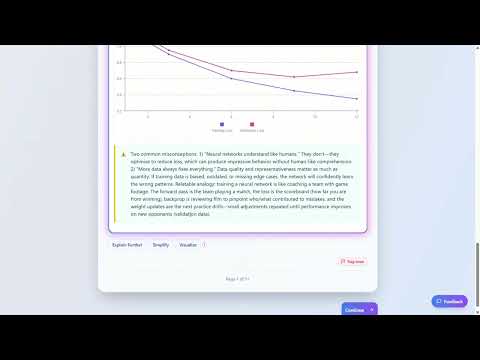
Below each chunk, up to three buttons are available — Explain Further, Simplify, and Visualize (shown on chunks that contain charts). These are instant, on-demand responses that appear inline without advancing your session.
Explain Further
Tap Explain Further for more depth: a step-by-step breakdown, real-world examples, analogies, or a closer look at common misconceptions. The result appears in a highlighted frame directly below the chunk.
Simplify
Tap Simplify to get the same idea rewritten in shorter sentences and simpler vocabulary — useful when the original explanation feels too dense or technical.
Visualize
Tap Visualize on chunks that contain a chart to generate an AI-created schematic image of the concept. The image is tailored to your topic's language and your learning level, and appears in the same highlighted frame alongside your Explain Further and Simplify results. You can tap Visualize multiple times — each attempt adds a new image to your navigable history. Each Visualize call deducts 250 credits.
Click as Many Times as You Need
Each click sends the AI the original chunk plus the full history of previous responses. On the 3rd attempt and beyond, the AI switches to a completely different teaching approach — a story, analogy, real-world scenario, or first-principles breakdown — instead of rephrasing the same content.
Use the ◀ / ▶ arrows in the result header to navigate between your attempts. The full history persists while you move between chunks in the same session.
💡
You can combine all three buttons freely — Explain Further, Simplify, and Visualize share the same navigable history. Use the ◀ / ▶ arrows to browse between all your responses in one place.
Watch: How Explain Mode Works
Watch Tutorial
ℹ️
Prefer to listen? Any section can be read out loud — see Read It Aloud
Explain, Quiz and Exam are three different jobs, not three difficulty levels. Explain teaches, Quiz checks while you learn, Exam measures under pressure. This page covers which to use when, what to do when material is too dense, and how to start a subject you know nothing about.
💬
The commonest mistake is not choosing the wrong mode. It is staying in Explain Mode because it is comfortable, and finding out what you do not know in the exam hall.
The Three Modes, and What Each Is For
Use them in that order within a subtopic, and cycle back as often as you like.
Explain Mode — to understand it the first time. Walks through the material in chunks with a knowledge check at each step. This is where learning happens, and also where it is easiest to fool yourself that it has.
Quiz Mode — to check while you are still learning. Lower stakes, immediate feedback, use it straight after a subtopic while the material is fresh.
Exam Mode — to measure, not to learn. Timed, covering the subtopics you choose, and it produces a mastery level with your strong and weak areas. Its value is diagnostic: it tells you where to spend your remaining time.
✅
Before a real test, the useful sequence is Exam first, not last. Sit one early, read the weak areas, and use Explain and Quiz on exactly what it named.
When the Material Is Too Dense
Inside Explain Mode, Simplify rewrites the current explanation in plainer terms and Explain Further goes deeper on the same point. Use Simplify when a paragraph will not go in, and Explain Further when you half-understand something and want to test whether it holds up — a claim that falls apart under expansion is one you have not understood yet. Neither costs you your place in the roadmap.
Starting a Subject You Know Nothing About
Starting at the beginning and going straight through is a reasonable instinct, and it is usually the wrong one when the subject is unfamiliar — it spends your freshest attention on the introduction and leaves the hard middle for when you are tired. Describe the topic and let the roadmap of subtopics form first: seeing the shape of a subject before studying it tells you which parts are foundations for later ones. Then do one fast pass over everything before trying to master any of it, so nothing is a complete surprise the second time through.
Study From the Source, or From Questions?
Both, in that order. Working only from question banks teaches you the questions rather than the subject, and it collapses the moment an exam asks something phrased differently. Working only from the source feels thorough but hides what you cannot yet do. The sequence that works is to understand from your own material first, then use questions to find out where that understanding is thinner than it felt.
Frequently Asked Questions
Which mode should I use before a test?›
Exam Mode, and earlier than feels comfortable. Its value is the mastery report naming your weak areas, which is what tells you where to spend the time you have left. Then use Explain and Quiz on exactly what it named.
What is the difference between Quiz Mode and Exam Mode?›
Quiz Mode is a low-stakes check while you are learning, with immediate feedback on a single subtopic. Exam Mode is timed, spans the subtopics you choose, and produces a mastery level plus strong and weak areas. Quiz to learn, Exam to find out.
The explanation is too dense. What do I do?›
Use Simplify inside Explain Mode to have the same point rewritten in plainer terms. If instead you half-understand it and want to check, use Explain Further — an idea that falls apart when expanded is one you have not got yet.
I know nothing about this subject. Should I just start at the beginning?›
Let the roadmap of subtopics form first so you can see the shape of the subject, then do one fast pass over all of it before trying to master anything. Straight-through-from-page-one spends your best attention on the easiest part.
Should I study from my textbook or from question banks?›
From your material first, then questions to find the gaps. Questions alone teach you the questions rather than the subject; material alone hides what you cannot yet do.
Reading is not knowing. Quiz Mode closes the gap between "I think I get it" and "I can prove it."
💬
Ever walked into an exam feeling confident, only to blank on the first question? That's the difference between recognition and recall. Quiz Mode trains recall.
Step 2 of 2
Quiz Configuration
Customize your quiz experience
☑ Multiple Choice
Choose the correct answer from options
○ True / False
Simple true or false questions
📋 Open Ended
Write your own answers
✏ Fill in the Blank
Fill in the missing words (cloze)
Start Quiz →
Quiz Configuration — choose your question type before starting
Question Types
Quiz Mode adapts to the material with a mix of question formats:
Multiple Choice — Select the correct answer from a set of options. Tests recognition and elimination skills.
True / False — Evaluate a statement and decide whether it's correct. Quick and focused — great for reinforcing key facts.
Open Ended — Write your answer in your own words. The AI evaluates your response for accuracy and completeness. This is where real understanding shows.
Fill in the Blank — Complete a sentence by supplying the missing word or phrase. Tests precise recall without giving you options to choose from.
The "I Don't Know" Button
This is the most underrated feature in the entire app.
When you see a question and genuinely don't know the answer, press "I Don't Know." The AI records that honestly and adjusts accordingly. Why is this powerful?
ℹ️
Guessing and getting lucky teaches you nothing. Admitting a gap tells the AI exactly where to focus next. The "I Don't Know" button is not a failure — it's the fastest path to filling real gaps in your understanding.
"Explain This" — AI Explanations Inside Quiz Mode
When you tap "I Don't Know", the answer panel reveals along with an "Explain This" button. Tapping it calls the AI to generate a focused, in-context explanation of the exact concept the question is testing — without leaving quiz mode.
1Tap "I Don't Know"
The correct answer is revealed along with the "Explain This" button.
2Tap "Explain This"
The AI generates a short, targeted explanation focused specifically on the concept behind that question. The explanation loads inline — you stay inside the quiz.
3Read, then continue
Use "Back to Question" to return to the question (the explanation stays cached — tapping "Explain This" again shows it instantly with no extra credit cost). Tap "Next Question" when you're ready to move on — this clears the explanation for the next question.
ℹ️
"Explain This" uses credits. If your balance is below the minimum required for an AI call, the Insufficient Credits dialog will appear instead. Top up your credits to continue using it.
✅
Use "Explain This" to understand why you got something wrong, not just what the answer is. That distinction is the difference between memorising an answer and actually learning the concept.
Your Score Breakdown
After completing a quiz, you'll see a detailed breakdown:
Overall score — Your percentage of correct answers.
Per-question analysis — Which questions you got right, wrong, or marked as "I Don't Know."
Weak areas — Specific concepts flagged for review.
Next Steps — The AI recommends whether to proceed to the next sub-topic or revisit specific chunks in Explain Mode first.
Next Steps Recommendations
Based on your score, the AI suggests one of two paths: advance to the next sub-topic if you've demonstrated mastery, or return to Explain Mode for targeted review of the concepts you missed. This loop — Explain, Quiz, Review — is the engine that builds durable knowledge.
✅
Explain Mode builds understanding. Quiz Mode tests it. The loop between them is where mastery lives. Trust the process.
Documentation, a framework you have to pick up by Monday, a language you are learning properly rather than by copying snippets — all of it works the same way as any other topic. This page covers how to get technical material in, what the explanations include, and the one place audio is the wrong tool.
💬
You can follow a tutorial to the end and still not be able to build the thing without it. Following is not the same as knowing.
It Works the Same Way, With Code in the Explanations
A technical topic behaves like any other: it becomes a roadmap of subtopics, Explain Mode walks you through them, and the explanations include worked code examples alongside the diagrams and callouts. Then Quiz Mode and Exam Mode question you on it. The useful difference from reading documentation is that documentation never asks you anything back.
Getting Technical Material In
Documentation as a PDF — most docs sites and API references can be printed or exported to PDF, and that uploads normally.
A technical book or course PDF — upload it in chapters rather than whole, so each topic stays a workable size.
Or just describe it — "the React hooks lifecycle", "how transformer attention works", "OAuth device flow". For a well-established technology this is often faster than finding a document, and it is the route your free credits cover.
Not a repository — you cannot point it at a GitHub repo or a URL, and it does not read a codebase. Upload the docs or describe the concept instead.
Audio Is the Wrong Tool for Code
Read It Aloud speaks text as it is written, which means a code block is read out symbol by symbol and becomes unusable noise. This is a real limitation and worth knowing before you try it on a technical section. The spoken conversation handles it differently and better: it is instructed never to read code, a URL or a table aloud, and to say instead that it is on screen and describe what it does.
✅
Use audio for the concepts and the screen for the code. A podcast episode on "what a race condition is and why locks help" works well; a podcast episode reading a function signature does not.
Explaining a Technical Idea Out Loud
This is where technical material rewards the spoken conversation most, because so much of a developer's job is explaining a decision to someone else. Talk through why you would use a queue here, defend a schema choice, or try to explain what you think a piece of code does — and get pushed on the parts you were hand-waving. It is also the closest rehearsal there is for a technical interview, which has its own page.
Frequently Asked Questions
Does it handle code?›
Yes. Explanations include worked code examples alongside diagrams and callouts, and quizzes and exams are generated from the same material.
Can I upload API documentation or a technical book?›
Yes, as a PDF. Most documentation sites can be printed to PDF, and a long book is better uploaded chapter by chapter so each topic stays a workable size.
Can I point it at a GitHub repository or a docs URL?›
No. It does not fetch URLs and it does not read a codebase. Upload the documentation as a PDF, or describe the technology and let it build the roadmap from that.
Can it read code out loud?›
Read It Aloud speaks text exactly as written, so a code block becomes symbol-by-symbol noise — do not use it for code. The spoken conversation is different: it will not read code aloud, and describes what is on screen instead.
Can I use it to learn about AI and machine learning?›
Yes, and it is one of the most common things people build topics about here. Describe the area you want — model architectures, evaluation, prompting, whatever it is — or upload the paper or documentation you are working from.
Quizzes build habits. Exams reveal the truth. Exam Mode simulates a real assessment environment so you know exactly where you stand before it counts.
💬
The difference between a quiz and an exam is consequence. Exam Mode creates a structured, timed (or untimed) test covering everything you've studied — so you can see the full picture of what you know and what still needs work.
Exam Mode vs. Quiz Mode
Both modes use the same question types, but they serve different purposes:
Quiz Mode — Short, focused practice on one subtopic at a time. Great for reinforcing a specific concept right after you study it.
Exam Mode — A full exam spanning multiple subtopics. Designed to simulate a real test and measure your overall mastery of a topic.
ℹ️
Use Quiz Mode during your study sessions. Use Exam Mode when you want to check if you're ready for the real thing — or to identify remaining weak spots before a deadline.
Setting Up Your Exam
The Exam Setup wizard has two steps:
1
Select Subtopics
Choose which subtopics to include in the exam. By default all subtopics are selected. Deselect any you haven't studied yet or want to exclude.
2
Configure the Exam
Customize four settings:
Number of questions — Between 5 and 100. The AI distributes questions evenly across your selected subtopics.
Question types — Pick any combination of Multiple Choice, True / False, Open-Ended, and Fill in the Blank.
Difficulty — Medium (core comprehension), Hard (deep analysis and application), or Automatic (random mix of both).
Timer — Choose Timed (set a limit from 10 to 180 minutes) or Untimed (no pressure).
✅
For an accurate self-assessment, select all subtopics, set difficulty to Hard, and turn the timer on. That combination mirrors the conditions of most real exams.
Step 2 of 2
Exam Configuration
Customize your exam experience
Number of Questions — 15
5 – 100
☑ Multiple Choice
Choose the correct answer from options
○ True / False
Evaluate a statement as true or false
📋 Open Ended
Write your own answer
✏ Fill in the Blank
Supply the missing word or phrase
Difficulty
🧠 Hard
Timer
⏱ 60 min
Start Exam →
Exam Configuration — set question count, types, difficulty, and timer before starting
During the Exam
Once the exam starts, you'll see one question at a time. The interface is designed to keep you focused:
Question navigation dots — A row of dots at the top shows your progress. Answered questions turn pink; the current question is purple; unanswered questions are grey.
Next Unanswered button — Jumps directly to the next question you haven't answered yet, so you can skip difficult questions and come back.
Timer — If timed, the countdown is displayed at the top. The color shifts from green → amber → red as time runs low. The exam submits automatically when time expires.
Answered count — Always visible so you can track how many questions remain.
⚠️
Exiting mid-exam will discard your progress for that session. If you need to leave, use the Exit button and confirm — your questions will not be saved.
Question 4 of 15
⏱ 47:183 answered
Multiple Choice
Which stage of the FATF's risk-based approach requires countries to identify and understand the money laundering and terrorist financing risks they face?
A) Customer Due Diligence
B) National Risk Assessment
C) Suspicious Activity Reporting
D) Correspondent Banking
Next Unanswered ↓
Next →
Live Exam — navigation dots track your progress; pink = answered, purple = current, grey = pending
Your Exam Results
After submitting, the AI generates a detailed analysis of your performance:
Overall score — Your percentage of correct answers, with a clear pass/fail indicator (70% threshold).
Mastery level — Beginner, Intermediate, or Advanced — reflecting the depth of understanding you demonstrated.
Strong areas — Subtopics where you performed consistently well.
Weak areas — Subtopics that need more study. These are the areas to revisit in Explain Mode or Quiz Mode before your next attempt.
Recommended next steps — Personalized guidance on what to do after the exam: go deeper, review specific subtopics, or move on.
Question-by-question review — Expand any question to see your answer, the correct answer, and the AI's feedback.
✅
Don't just look at your score — read the weak areas and recommended next steps. That's where the real learning happens after an exam.
🎓
Exam Complete
Financial Intelligence Fundamentals
Hard✨ Advanced
87%
✓ 13 Correct✗ 2 Wrong– 0 Skipped
💪 Strong Areas
• Risk Assessment
• AML Frameworks
• CFT Typologies
📚 Weak Areas
• Correspondent Banking
• STR Thresholds
Recommended next steps: Review Correspondent Banking in Explain Mode, then retake Quiz Mode on STR Thresholds before your next exam attempt.
Exam Results — score, mastery level, strong and weak areas, and AI-recommended next steps
Hierarchical Exam Scoping
Exam Mode operates at three scope levels. The entry point determines how wide the exam can reach:
Topic Exam — launched from a single topic's detail page. Step 1 lets you select individual subtopics within that topic.
Course Exam — launched from a course detail page. Step 1 shows a two-level tree: Topics → Subtopics, so you can include or exclude entire topics at once.
Plan Exam — launched from a Learning Plan. Step 1 shows a three-level tree: Courses → Topics → Subtopics, giving you control over the full curriculum scope.
All three levels share the same Step 2 configuration screen (question count, types, difficulty, timer). Only the selection breadth in Step 1 differs.
ℹ️
The Plan Exam button only appears on a Learning Plan once at least one course has been added. On an empty plan the button is hidden — add a course first.
During the Exam
The exam interface is designed to replicate a real testing environment:
Live countdown timer — If you chose a timed exam, the remaining time is displayed prominently at all times.
Numbered question navigator — A panel of numbered buttons lets you see all questions at a glance. Answered and unanswered questions are visually distinguished.
Non-linear navigation — Use Previous and Next to move through questions in order, or jump to any question directly from the navigator. A Next Unanswered button skips ahead to the first question you haven't answered yet.
No per-question feedback — You receive no indication of whether your answer is correct until you submit the full exam. This is intentional — it mirrors real examination conditions.
Submit Exam — When you're ready, tap Submit Exam to finalise all answers at once. After submission, the AI grades your responses and generates a full results analysis.
⚠️
If you try to leave mid-exam, a "Leave Exam?" confirmation dialog appears. Confirming exits the session and your progress is discarded. Use the navigator to review skipped questions before submitting rather than leaving.
Credit Cost
Exam Mode consumes credits in two stages: once when generating the questions, and once when the AI evaluates your answers and produces the results analysis. The total cost scales with the number of questions and types selected.
Watch: How Exam Mode Works
Watch Tutorial
ℹ️
Pass an exam that covers a whole topic and you may earn a certificate — see Certificates
Pay only for what you use. No subscriptions. No surprises.
💬
Most learning platforms charge you monthly whether you use them or not. Learning Clarity works differently — you buy credits and spend them on the features you actually use.
How Credits Work
Credits are the currency of the platform. They are consumed when you use AI-powered features:
Creating a new topic — The AI analyzes your material and generates a structured roadmap.
Explain Mode — Generating bite-sized explanations, charts, and knowledge checks.
Quiz Mode — Creating adaptive assessments and evaluating your answers.
Each action costs a small number of credits. The more complex the AI processing, the more credits consumed — but the model is designed so that a single credit purchase goes a long way.
Free Credits
When you create your account, you receive free credits immediately. Use them to explore the platform — create a topic, try Explain Mode, take a quiz — and experience the full learning loop before purchasing.
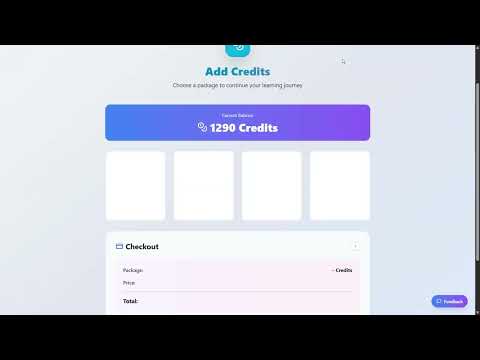
Add Credits
Choose a package to continue your learning journey
Current Balance
4,203 Credits
Starter
4,500
Credits
$7.99
POPULAR
Advanced
28,500
Credits
$29.99
Save 10%
Ultimate
65,000
Credits
$59.99
Save 25%
stripe Secure checkout powered by Stripe
Credit Store — choose a package and pay securely through Stripe
Credit Tiers
Tier
Credits
Price
Saving
Starter
4,500
$7.99
—
AdvancedPOPULAR
28,500
$29.99
Save 10%
Ultimate
65,000
$59.99
Save 25%
ℹ️
The higher the tier, the greater the saving. If you're planning to study multiple topics, the Ultimate package gives you the most credits per dollar.
Referral Program
Learning Clarity rewards you for spreading the word. When you refer someone to the platform and they make their first credit purchase, you receive 10% of the credits they bought — added directly to your balance.
For example, if your friend purchases the Advanced package (28,500 credits), you automatically receive 2,850 bonus credits. There's no cap on how many people you can refer — the more friends you invite, the more credits you earn.
✅
Share your referral link → your friend signs up and makes their first credit purchase → you receive 10% of those purchased credits instantly.
Payment & Refund Policy
All payments are processed securely through Stripe. Your credit card details are never stored on Learning Clarity's servers — Stripe handles everything.
Credits are non-refundable and non-transferable between accounts. They don't expire, so you can use them at whatever pace suits your learning schedule.
What You Get Free, and Why There Is No Subscription
Creating an account gives you 500 free credits, and no card is asked for. There is no subscription and nothing to cancel — you buy credits only when you want more, they never expire, and everything you have already built stays yours even when your balance reaches zero.
💬
Most learning platforms charge you every month whether you open them or not. This one charges for the work it does, and nothing at all when you are not studying.
What the 500 Free Credits Cover
They arrive the moment your account is created. There is no trial period, no card kept on file, and nothing that quietly starts charging when a trial runs out.
What Each Thing Needs
Every action has a minimum balance it will not start below. These are the floors, not the final price — what an action actually costs depends on how much work it does.
Describing a topic in your own words — from 50 credits. This is the route your free credits are meant for.
Building a topic from uploaded files — needs at least 1,000 credits, so it is not available on the free balance on its own.
An AI-built course — from 150 credits.
Reading a section aloud — from 70 credits, and every replay of that section is free.
There Is No Subscription to Cancel
Credits are bought as a one-off purchase. Nothing renews, no card is kept on file for automatic charging, and there is no plan running quietly in the background. If you came here hunting for a cancel button, there is nothing to cancel — stop buying credits and nothing further is ever charged.
✅
Credits never expire. A pack bought today is still there months later, whether you studied in between or not.
What Happens When Your Balance Reaches Zero
Nothing is taken away. Your topics, roadmaps, explanations, quiz and exam history, certificates and progress all stay exactly where they were. A zero balance stops you generating new material; it does not lock or delete what you already have. The only thing that removes your content is deleting your account yourself.
Why Pay at All, When a General AI Chat Is Free?
A general assistant answers a question and forgets it. What you are paying for here is what remains afterwards: a roadmap through the subject that remembers where you stopped, quizzes and timed exams built from your own material, a mastery report naming your weak areas, an examination history you can look back over, audio you can keep, and a certificate with a public verification link an employer can check. If a one-off answer is genuinely all you need, a free chat is the better tool and we would rather say so.
Frequently Asked Questions
How many free credits do I get, and do I need a card?›
500 credits, added the moment your account is created. No card is asked for and nothing is charged automatically.
How do I cancel my subscription?›
There is no subscription. Credits are a one-off purchase, nothing renews, and no card is kept on file for automatic charging, so there is nothing to cancel.
Is there a free trial that starts charging me later?›
No. There is no trial period and no automatic charge at the end of one. The free credits are simply yours from the moment you sign up.
Do credits expire?›
No. Credits stay on your account until you use them, however long that takes.
If I run out of credits, do I lose my topics and progress?›
No. Everything you have already created stays available. A zero balance only stops new material being generated. The only thing that removes your content is deleting your account.
Can I upload my own files using the free credits?›
Not on the free balance alone. Building a topic from uploaded files needs at least 1,000 credits and you start with 500. Describing a topic in your own words needs only 50, so that is where to start.
Your antivirus browser extension is likely the cause — not a problem with your account.
⚠️
If the payment page goes blank, spins forever, or throws errors — this article explains why and how to fix it in 30 seconds.
What's Happening
Stripe's checkout page enforces a strict Content Security Policy (CSP) — it only allows its own trusted scripts and styles to run.
Browser extensions from antivirus tools — such as Kaspersky, Avast, Norton, and similar products — inject their own scripts and styles into every page you visit, including Stripe's checkout. Stripe's CSP rightfully blocks these injections, and in the process, Stripe's own scripts can also fail to load.
Common Symptoms
The checkout page goes blank or never finishes loading
A spinning loader that never resolves
Console errors mentioning MIME type mismatches, CSP violations, or CORS failures
Error codes like 499 on Stripe's JS bundles
How to Fix It
1Option 1 — Disable the antivirus browser extension (recommended)
In your browser's extensions menu, temporarily disable Kaspersky Internet Security, Avast Online Security, Norton Safe Web, or whichever antivirus extension is installed. Then reload the page and try checkout again. You can re-enable the extension once your purchase is complete.
✅
Many antivirus extensions have a per-site whitelist. You can whitelist checkout.stripe.com so only that domain is unprotected, instead of disabling the extension entirely.
2Option 2 — Use a private / incognito window
Open a new incognito window (Chrome: Ctrl+Shift+N / Cmd+Shift+N) or private window (Firefox: Ctrl+Shift+P). Browser extensions are typically disabled in private mode by default. Navigate to the app and retry your purchase.
✅
This is not a bug in Learning Clarity or a problem with your account. Your credits and payment history are safe. The issue is entirely between Stripe's security policies and your browser extension.
See exactly where you stand. No guesswork, no vague feelings — data that shows your real trajectory.
💬
Have you ever studied for weeks and still felt unsure whether you were actually improving? Your dashboard answers that question with numbers.
Your Learning Dashboard
The dashboard is your mission control. It gives you a clear view of every topic you've created, how far you've progressed through each one, and your quiz performance over time.
What You'll See
Topic list — Every topic you've created, with a progress bar showing how many sub-topics you've completed.
Quiz history — Scores for every quiz attempt, so you can track improvement across retakes.
Performance analytics — Patterns in your results. Which question types give you trouble? Where do you consistently score well?
Mastery Level — An aggregate indicator of your understanding across all sub-topics within a topic, built from your Explain Mode completion and Quiz Mode scores.
Using Progress Data Effectively
Numbers alone aren't useful unless you act on them. Here's how to read your dashboard like a strategist:
If a sub-topic shows low quiz scores, return to Explain Mode for that sub-topic. Re-read the chunks, pay special attention to the knowledge checks.
If your overall mastery is high but one area is lagging, focus your next session there. Don't review what you already know — spend time on the gap.
Track your score trends over multiple quiz attempts. Improvement over time matters more than any single score.
✅
The dashboard isn't a report card. It's a GPS. It tells you where you are and where to go next. You're the architect of your learning ecosystem — the data is your blueprint.
Learning Clarity runs in a web browser on any device — phone, tablet or laptop — and there are also iOS and Android apps. Everything in the web version works on a phone screen, including the voice features, provided you allow microphone access when asked.
💬
Most of the questions here come from one confusion we created ourselves: mentioning the mobile app in one place without ever saying whether the website works on a phone. It does.
The Web Version, on Any Device
There is nothing to install to get started. Signing in from a phone browser gives you the same product as a laptop — creating topics, Explain Mode, quizzes, exams, podcasts and spoken conversations all work. Use a current version of whichever browser you prefer and keep it up to date, since the voice and audio features rely on capabilities that older browsers may not have.
The iOS and Android Apps
There are native apps for iPhone and Android as well. They are worth having if you study on a phone regularly, and there is one thing that can only be done there: deleting your account permanently is available in the mobile app, not on the web.
✅
A laptop is easier for uploading a large set of files and for sitting a long timed exam. A phone is better for listening to a podcast episode or having a spoken conversation while you are out.
Microphone Permission
The spoken conversation needs access to your microphone, so your browser or phone will ask for permission the first time you start a call. If you decline, the call cannot hear you — you can still type your side of the conversation instead, and the answer still comes back spoken. If you declined by accident, the permission can be re-enabled in your browser's site settings or your phone's app settings.
Listening While You Are Doing Something Else
A podcast episode can be downloaded as an MP3, which is the option to use when you will be somewhere with poor signal or want it in your usual audio app. Read-aloud sections play inside the app rather than downloading, and the podcast player keeps playing while you move around the rest of the app.
Frequently Asked Questions
Does it work on my phone, or do I need a laptop?›
It works on a phone. The web version runs in a phone browser with the same features as a laptop, and there are also iOS and Android apps. A laptop is simply more comfortable for large uploads and long exams.
Is there a mobile app?›
Yes, for both iPhone and Android. You do not need it to use Learning Clarity, but it is convenient if you study on a phone often.
Which browsers are supported?›
Any current, up-to-date browser. Keeping it updated matters most for the audio and voice features, which use capabilities older browsers may lack.
It is not hearing me during a spoken conversation.›
Microphone permission was most likely declined or blocked. Re-enable it in your browser's site settings or your phone's app settings, then start the call again. In the meantime you can type your side instead and still get a spoken reply.
Why can I not delete my account on the web?›
Permanent account deletion is available in the mobile app. If you only ever use the web version, you will need to install the app to complete it.
Profile Settings — manage your personal details, interface language, and security
Personal Information
Your profile stores the basics: your name, email address, and date of birth. The date of birth is used to tailor the learning experience — younger learners receive age-appropriate explanations, visuals, and tone, while adult learners get a more advanced, professional presentation.
Interface Language
You can change the language of the entire user interface at any time from your Profile page. This controls all menus, buttons, navigation labels, and system messages. Learning Clarity currently supports seven interface languages: English, Spanish, French, German, Italian, Portuguese, and Arabic.
Switching is instant — the interface updates immediately, and your learning content remains untouched. For Arabic and other RTL languages, the full layout mirrors automatically.
ℹ️
These are two separate settings. Your interface language controls how the app looks and navigates. Your explanation and quiz language — the language the AI uses to teach you — is set separately during topic creation. You can have the interface in German while studying a topic with explanations in English, for example.
Social Links
Your profile page includes a Social Links section where you can add links to your social media profiles. Supported platforms are:
Instagram
TikTok
YouTube
Upscrolled — the Learning Clarity community platform
Social links are optional and visible to other Learning Clarity users who visit your profile. You can add, edit, or remove them at any time from the Social Links section on your Profile page.
Account Security
From your profile you can also update your password. For a full overview of how your data is secured, see Security & Trust.
✅
Set your interface language first, then create your topics. That way the entire experience — from navigation to AI-generated content — feels native from the start.
Your uploaded notes, slides and PDFs stay yours, are kept isolated to your account, and are processed in order to build your topics, quizzes and exams. This page is about what that processing involves in practice, who can see your material, and where the honest limits of our answer are.
💬
"Is it safe to upload my lecture notes?" deserves a specific answer rather than a reassuring one. Here is what actually happens, including the part we cannot promise.
The Material Stays Yours
Uploading a document does not transfer ownership of it. Your files and the content generated from them belong to you, and they exist in your account for you to study from, not as something we publish, resell or share.
Who Can See It
Your material is isolated to your account at the database level, so other learners cannot reach it — there is no shared pool where one person's uploads become visible to another. Content only leaves your account if you deliberately share it using the sharing feature.
It Is Sent to an AI Service to Be Processed
This is the part worth understanding. To turn a PDF into subtopics, explanations and questions, the material has to be sent to the AI service that does that work. That is not a side effect — it is the mechanism by which the product functions at all. Those services handle the data according to their own terms, which are outside our control.
⚠️
So the honest boundary is this: we can tell you your material is not shared with other learners and is not sold, and we can point you to our Privacy Policy for the full statement of how data is handled. We cannot make promises on behalf of the AI services about how they treat data they receive. If a document is confidential, covered by an NDA, or contains someone else's personal information, do not upload it. That advice costs you nothing and removes the question entirely.
Removing It
Deleting your account removes your content. That is a permanent action rather than a pause, and the Delete Account article covers exactly what goes and what the process involves before you start it.
The Authoritative Version
This page is a plain-language summary written to answer the question learners actually ask. The Privacy Policy is the binding statement of what is collected, how it is used, which third parties are involved and what your rights are. Where the two ever appear to differ, the Privacy Policy is the one that governs.
Frequently Asked Questions
Is my uploaded material used to train AI models?›
Your material is sent to an AI service in order to generate your topics, explanations and questions — that processing is how the feature works. How those services subsequently handle data they receive is governed by their own terms rather than by us, so we do not make a promise on their behalf. If a document is confidential or covered by an NDA, do not upload it.
Can other learners see what I uploaded?›
No. Material is isolated to your account at the database level, so there is no way for another learner to reach it. It leaves your account only if you deliberately share it.
Can I upload confidential work documents?›
We would advise against it. Material has to be sent to an AI service to be processed, and we cannot give undertakings on that service's behalf. For anything under an NDA, or containing other people's personal data, study it without uploading it — describe the topic in your own words instead.
How do I remove material I have uploaded?›
Deleting your account removes your content permanently. See the Delete Account article for what that involves and what it cannot be undone from.
Do I still own what I upload?›
Yes. Uploading does not transfer ownership. Your files and the material generated from them remain yours.
Your data is yours. Here's exactly how we protect it.
Data Isolation
Every user's data is protected by Row-Level Security (RLS) at the database level. This means you can only access your own topics, quiz results, and progress data — no user can see another user's information, even in theory.
Encryption & Authentication
HTTPS everywhere — All data in transit between your browser and Learning Clarity's servers is encrypted.
Password hashing — Your password is cryptographically hashed. We never store or have access to your plaintext password.
JWT authentication — API communications are secured with JSON Web Tokens to prevent unauthorized access.
OAuth options — Sign in with Google, Microsoft, or Apple. Learning Clarity never receives your password from these services.
Secure Payments
All credit purchases are processed through Stripe, an industry-leading payment processor. Your credit card number and CVV are never stored on Learning Clarity's servers. Webhook events from Stripe are verified using signature verification to prevent tampering.
Privacy by Design
Cookie usage — Learning Clarity uses cookies for core service functionality and to measure how the platform is used so we can improve it.
Minimal data collection — We collect only what's necessary to provide the service: your profile, learning data, and transaction records.
Your uploads stay yours — You retain ownership of any educational materials you upload. The AI processes them solely to generate your learning content.
How to permanently remove your account and all associated data from the mobile app.
⚠️
This action is permanent and cannot be undone. Your credits, topics, courses, quizzes, and all associated data will be deleted immediately.
Steps to Delete Your Account
1Open Your Profile
Tap your profile avatar in the top-right corner of the screen.
2Find Account Actions
Scroll down to the Account Actions section at the bottom of your profile.
3Tap Delete Account
Tap the Delete Account button.
4Review What Will Be Deleted
A warning screen will list everything that will be permanently deleted — your topics, quizzes, exams, courses, study materials, credits, certificates, and referral history.
5Type the Confirmation Word
Type DELETE in the confirmation field exactly as shown (all capitals).
6Confirm Deletion
Tap Delete Account to confirm. Your account and all data will be immediately and permanently removed.
Frequently Asked Questions
Can I recover my account after deletion?▸
No. Deletion is immediate and permanent. There is no grace period and no way to restore your account or any of your data after confirmation.
What happens to my unused credits?▸
All unused credits are forfeited permanently upon account deletion. Credits are non-refundable.
Can I delete my account on the web version?▸
Account deletion is currently available in the mobile app only. Open the app and go to Profile → Account Actions → Delete Account.
A large set of lecture PDFs and a close exam date is the most common hard case, and the usual mistake is to upload everything at once and start reading from page one. This is a sequence that works instead: split the material, build the roadmap, study actively, then sit a timed mock exam and let it tell you where to spend the last few days.
💬
With two weeks left, the expensive mistake is not studying too little. It is studying evenly — giving the chapter you already know the same hours as the one you have been avoiding.
Split It Before You Upload It
Do not put two hundred pages in as one topic. Split the material the way the course does — by module, by lecture block, by chapter — and build a topic from each. Smaller uploads produce sharper subtopics, they keep each roadmap a realistic size, and they sit comfortably inside the upload limits instead of fighting them.
✅
One topic per module also gives you one mock exam per module, which is what makes the weak-area report useful later. A single giant topic gives you one blurred score.
A Shape for the Two Weeks
Days 1–7 — cover the ground. Work through each module in Explain Mode, answering the knowledge checks rather than skipping them. Run a quiz at the end of each module while it is fresh. The aim is contact with everything, not mastery of anything yet.
Days 8–12 — find out what you do not know. Sit a timed exam per module. Read the mastery report and the weak areas, and spend your study time only on what it names. This is the part that makes the fortnight work, and it is the part people skip.
Last 48 hours — retrieve, do not re-read. Re-reading feels productive and teaches almost nothing this late. Re-sit the exams you scored worst on, and explain the two or three shakiest subtopics out loud in a spoken conversation. If you cannot say it, you do not know it yet.
Let the Mastery Report Allocate Your Time
After a timed exam you get a mastery level, your strong areas, your weak areas and recommended next steps. That list is the whole point of sitting the mock early rather than the night before: it converts a vague sense of being behind into a specific, short list of subtopics. Study that list. Revisit it after each re-sit, because it moves.
Use the Dead Time
Commutes, walks and queues are hours you already have. Turn a module into a podcast episode and listen to it, or have a section read aloud. It is not a substitute for active work — listening is passive, and passive is what the fortnight cannot afford much of — but it is a way of getting a fourth or fifth pass over material you have already worked through properly.
One Honest Caveat
Two weeks is enough to pass a subject you have attended and neglected. It is not enough to learn a subject you have never seen, and no study tool changes that. If you are genuinely starting from zero on all two hundred pages, choose the modules that carry the most marks and accept that you are triaging rather than covering — which is exactly what the 80/20 approach is for.
Frequently Asked Questions
Should I upload everything as one topic or split it by module?›
Split it. Smaller uploads produce sharper subtopics, keep each roadmap a workable size, and give you one mock exam per module — which is what makes the weak-area report specific enough to act on.
How much material can I upload at once?›
Up to 50 MB in a single upload, with a 40 MB limit per PDF. That is another reason to split a large document set by module rather than sending it all at once.
I have no idea where to start. What comes first?›
Build the topics first so you can see the roadmap, then do one fast pass through everything in Explain Mode before trying to master anything. Knowing the shape of the material is what makes the rest of the plan allocatable.
When should I sit the mock exam?›
Earlier than feels comfortable — around the start of the second week. Its value is telling you where to spend your remaining time, which is worthless the night before.
What if I have days, not weeks?›
Compress the same order rather than changing it: one pass through the highest-weighted modules, one timed exam to locate the gaps, then all remaining time on the named weak areas. Skip the wide coverage, not the diagnosis.
A focused sprint that combines Explain Mode and Quiz Mode into a single, high-impact session.
💬
You don't need five hours. You need 30 focused minutes. Here's the formula that turns a half-hour into real, provable understanding.
The 20/10 Sprint
This is a structured session format based on the "Micro-Chunk" and "Sprint" principles. The idea is simple: learn in focused bursts, then immediately test yourself.
1Minutes 1–20: Explain Mode Sprint
Open a sub-topic and work through the bite-sized chunks. Don't rush, but don't linger. The goal is to absorb each concept and pass the knowledge checks on your first attempt. If you miss one, read the clarification, then keep moving.
Set a timer if it helps. The slight time pressure mimics real study conditions and keeps your focus sharp.
2Minutes 20–30: Quiz Mode Proof
Switch to Quiz Mode for the same sub-topic. Answer every question — including the open-ended ones — with no notes. Use the "I Don't Know" button honestly if you hit a blank. This is where you discover the difference between what you think you know and what you actually retained.
3Review Your Score Breakdown
Read the breakdown. If you scored well, move to the next sub-topic tomorrow. If specific areas were flagged, return to those chunks in Explain Mode at the start of your next session.
Why 30 Minutes Works
Research on spaced repetition and focused attention shows that short, intense study sessions produce better long-term retention than marathon sessions. Your brain consolidates information more effectively when it has time to rest between bursts.
One 30-minute sprint per day, done consistently, will outperform a weekly five-hour cram session every time.
✅
Same time, same place, 30 minutes. After a week, it won't feel like discipline — it'll feel like routine. And routine is where mastery lives.
Paste the job description and your CV in as a topic, and you can be questioned on them out loud — behavioural questions, technical ones, the awkward gap in your history — as many times as you like. The conversation is written down afterwards, so you can read back what you actually said rather than what you meant to say.
💬
Everyone rehearses interviews in their head, where they are articulate and nobody interrupts. The first time you say it out loud should not be in the room.
Setting It Up
Interview practice is just a topic, so build one out of the material the interview will actually be about:
The job description — paste it in as the topic description, or upload it as a PDF. The responsibilities are the syllabus.
Your CV — include it too. Questions then come from your history as well as the role, which is where the uncomfortable ones live.
Name the topic for the interview, not the job — for example "Interview: senior analyst, retail banking" — so the roadmap is built around being asked rather than around learning the subject.
Use subtopics as rounds — the roadmap breaks the material into subtopics, and each one is a sensible unit for a single rehearsal call.
Running a Rehearsal
Start a spoken conversation on one subtopic and answer out loud, without notes. Let the follow-up questions come — being pushed on a vague answer is the whole point, and it is the part reading your notes cannot do. A call runs up to nine minutes, which is close to a real interview round, so treat each call as one round rather than trying to cover everything in one sitting. Then start a fresh call on the next subtopic, so every rehearsal begins cold the way the real thing will.
What It Does Not Do
It does not score you. There is no rating of your delivery, no analysis of your tone or pace, no filler-word count and no percentage at the end. Tools built specifically for interview coaching sell exactly that, and we would rather tell you plainly than imply we do it. What you get instead is the rehearsal itself — being asked, having to answer aloud, being pushed when you were vague — and a written transcript afterwards.
✅
The transcript is where most of the value is. Reading back what you actually said, rather than what you remember saying, is usually the fastest way to find the answer that needs rewriting.
Interviewing in a Second Language
If the interview will be in a language that is not your first, set the topic's content language to that language and rehearse in it. The tutor answers only in that language and will not switch back when you hesitate, which is uncomfortable and is exactly the discomfort you are training for. You can read the explanations in your own language first by creating a second topic — understand the material in the language you think in, rehearse it in the language you will be judged in.
Technical Interviews
For a technical round, make the technical material the topic — the stack, the domain, the system you will be asked to reason about — and use the conversation to explain concepts out loud under questioning. It will not run a live coding environment or watch you write code. What it is good for is the part of a technical interview that is actually spoken: explaining a trade-off, defending a design choice, admitting what you do not know without falling apart.
Frequently Asked Questions
Can I practise a job interview with this?›
Yes. Build a topic from the job description and your CV, then start a spoken conversation and answer the questions out loud. Each call runs up to nine minutes, roughly one interview round.
Will it ask questions from the actual job description?›
Yes, if you make it the material. The conversation is grounded in the topic you built, so paste or upload the job description and your CV and the questions come from those rather than from a generic list.
Will it tell me how good my answer was?›
Not as a score. There is no rating, tone analysis or percentage — it responds to what you said and pushes further where you were vague. The transcript afterwards is the honest feedback: read back what you actually said.
Can I rehearse behavioural questions and structured answers?›
Yes. Include your CV so the questions reach into your actual history, and rehearse answering aloud. If you use a structure such as situation-task-action-result, say it that way out loud and check in the transcript whether the result was really there.
Is it useful for a technical interview?›
For the spoken half, yes — explaining a trade-off, defending a design decision, reasoning about a system under questioning. It does not run code or review a live coding exercise.
Can I practise interviewing in a language that is not my first?›
Yes, and this is where it is unusually useful. Set the topic's content language to the interview language and the tutor speaks only that language — it will not switch back when you hesitate, which is the situation you are training for.
The research is clear: people who teach a concept understand it more deeply than those who only study it. Here's how to use that in Learning Clarity.
💬
There's a strange truth about learning: you don't fully understand something until you can explain it to someone else. The act of teaching rewires your brain.
What Is the Protégé Effect?
The Protégé Effect is a well-documented phenomenon in learning science. When you prepare to teach material — organizing it, simplifying it, anticipating questions — you process it at a deeper level than when you study for yourself alone. The result: better retention, stronger understanding, and the ability to apply knowledge in new contexts.
How to Use Explain Mode as a Teaching Tool
1Study the Chunks
Go through Explain Mode as usual. But this time, as you read each chunk, ask yourself: "How would I explain this to a friend who knows nothing about this topic?"
2Summarize in Your Own Words
After completing a sub-topic, open a blank document or notes app. Write a short explanation — 3 to 5 sentences — as if you're teaching a beginner. Don't copy the AI's language; use your own words. The struggle to rephrase is exactly where learning deepens.
3Test Yourself with Quiz Mode
Take the quiz. If a question stumps you, that's a gap in your "teaching" — a concept you understood passively but can't actively reproduce. Go back and revise your summary.
4Actually Teach Someone
Find a study partner, a family member, or even an online community. Explain the topic to them. Their questions will reveal nuances you missed. This is the ultimate test.
✅
By taking responsibility for someone else's understanding, you strengthen your own. Teaching is not charity — it's strategy.
Plenty of people here are not students. They are learning something for a job — a new system, a regulation, a technology a role now expects — usually in short sessions, without a syllabus, and with no exam at the end. Everything works the same way; what changes is how you use it.
💬
Professional learning has no term dates and no examiner. That freedom is why it so often quietly stops after week two.
It Adapts to an Adult Audience
Explanations are pitched according to your date of birth in your profile, so an adult account is written for an adult — direct, without the classroom framing or the encouragement a younger learner gets. If your explanations read as too simple or too school-like, check that your date of birth is set correctly, because that is what drives it.
There Is No Syllabus, So Make One
The hardest part of learning for work is that nothing defines what "done" means. Describe the outcome you actually need — not the subject, but the thing you must be able to do — and let it become a roadmap of subtopics. That roadmap is the syllabus nobody gave you, and it converts an open-ended intention into a finite list, which is the difference between studying and meaning to.
Built for Short Sessions
Professional study happens in the gaps: before work, between meetings, on a commute. Explain Mode is chunked, so a subtopic is a sensible unit for twenty minutes rather than something you must finish in one sitting. A podcast episode of a subtopic turns a commute into a second pass over material you have already worked through, and a spoken conversation is a way of rehearsing an explanation you will have to give to colleagues.
✅
Finish each session with a quiz rather than a page of reading. It takes three minutes and it is the difference between having read something and being able to use it on Monday.
When You Need Something to Show
Employers and clients often want evidence rather than a claim. A timed exam produces a mastery report, and passing one can earn a certificate with a public verification link that anyone can check without an account. It is not an accredited qualification and should never be presented as one, but for internal upskilling, a personal development record or a CV line you can substantiate, it is considerably better than saying you read about it.
Frequently Asked Questions
I am not a student. Is this built for adults learning for work?›
Yes. Explanations adapt to an adult audience based on the date of birth in your profile, and nothing assumes a school or university context. If the tone reads as too simple, check that your date of birth is set correctly.
I have no syllabus and no exam. How do I know what to study?›
Describe the outcome you need to be able to deliver rather than the subject, and let the roadmap of subtopics become the syllabus. It turns an open-ended intention into a finite list you can work through.
Can I show my employer what I have learned?›
A timed exam produces a mastery report, and passing can earn a certificate with a public verification link anyone can check without an account. It is not accredited and should not be described as a qualification, but it is checkable evidence of assessed study.
I only get twenty minutes at a time. Is that enough?›
Yes. Explain Mode is chunked, so one subtopic is a reasonable unit for a short session. Finish with a quiz rather than more reading, and use podcast episodes on a commute for a second pass.
Not all sub-topics are created equal. Learn how to identify the 20% of material that gives you 80% of the results.
💬
You don't have to learn everything perfectly. You have to learn the right things first. The Pareto Principle shows you which things those are.
What Is the Pareto Principle?
Also called the 80/20 rule, it's an observation that roughly 80% of outcomes come from 20% of causes. Applied to learning: a small subset of concepts often provides the foundation for understanding the majority of a subject.
How to Apply It in Learning Clarity
1Review Your Topic Roadmap
After the AI generates your sub-topics, scan the list. Identify which sub-topics are foundational — concepts that other sub-topics depend on. These are your 20%.
For example, in a "Web Development" topic, understanding HTML structure is foundational. Advanced CSS animations is not. Start with the foundation.
2Sprint the Foundations First
Use the 20/10 sprint (Explain Mode, then Quiz Mode) on your foundational sub-topics first. Get these to high mastery before touching the rest. A strong foundation makes everything else easier.
3Use Quiz Scores as a Compass
After quizzing on the foundational topics, check your dashboard. If your mastery is high on the core 20%, you'll find the remaining 80% of sub-topics significantly easier. The AI's roadmap is already structured to build on prior knowledge — you're accelerating the process by prioritizing correctly.
ℹ️
Look for sub-topics that appear early in the roadmap, that use terminology referenced by later sub-topics, or that cover "first principles" of the subject. These are your leverage points.
✅
Instead of feeling overwhelmed by the total volume of material, you've identified the critical path. You're not studying harder — you're studying smarter.
Not everyone here has an exam. People use this to finally understand a subject they have circled for years, to pick up a practical skill, or to satisfy a curiosity properly instead of reading three articles and forgetting them. Nothing changes mechanically — what changes is which parts are worth using.
💬
The problem with learning something for its own sake is that nothing stops you drifting. There is no deadline, no examiner, and no moment where you find out whether any of it stuck.
Nothing Here Requires an Exam
You can describe a topic, get a roadmap, and work through the explanations without ever touching Quiz or Exam Mode. Plenty of people do. But consider using them anyway, for a reason that has nothing to do with marks: a quiz is the only moment in self-directed learning where you find out whether you actually understood something or merely enjoyed reading it. That distinction is invisible from the inside.
What Is Actually Worth Using
Describe the topic rather than uploading — for a personal interest there is usually no document, and describing it in your own words is both cheaper and the route your free credits cover.
A quiz at the end of each subtopic — three minutes, and it is the difference between having read something and knowing it.
A podcast episode — the best fit of all for interest-led learning, because it turns a walk or a commute into the second pass that casual learning almost never gets.
Explaining it out loud — if you cannot explain why you find it interesting, you have not understood it yet. That is uncomfortable and it is the fastest diagnostic there is.
What It Cannot Do
It cannot teach you to physically do something. For music, cooking, a sport, a craft, repairing an engine — it can teach you the theory, the vocabulary, the principles and the decisions, and it cannot watch your hands or hear your instrument. Treat it as the part of the skill that lives in your head, and expect to do the rest in the world. Knowing why a sauce splits does not stop you splitting one, but it does tell you what to change.
It Is Fine to Stop
Interest-led learning stops, and that is not a failure. Nothing here charges you for a subject you abandoned, credits do not expire, and the topics you built stay exactly where you left them if you come back in eight months. There is no streak to protect and no plan renewing quietly in the background — which is precisely why picking something up again costs nothing but the decision.
Frequently Asked Questions
Can I use this for a hobby or personal interest?›
Yes. Describe the topic and you get a roadmap and explanations like any other subject. Podcast episodes suit interest-led learning particularly well, because they turn a walk into a second pass.
There is no exam. Is it still useful?›
Yes, and the quizzes are worth using anyway. Self-directed learning has no moment that tells you whether something landed — a three-minute quiz is that moment, and it is the only honest one.
Can it teach me a practical skill like an instrument or cooking?›
It can teach the theory, vocabulary and decisions behind it, and it cannot watch you do it. Use it for the part of the skill that lives in your head and practise the rest in the world.
Why would I sit an exam on a hobby?›
For the mastery report rather than the score. It names the parts you are weak on, which is genuinely hard to see in a subject nobody is testing you on.
What happens if I lose interest halfway?›
Nothing. Credits do not expire, nothing recurring is charged, and your topics stay where you left them. Coming back later costs nothing but deciding to.
Overwhelm, procrastination, and low motivation are not character flaws. They're signals. Here's how to work with them.
💬
Some days, opening a textbook feels like lifting a boulder. That's not laziness — it's your brain telling you something. Let's figure out what.
Recognize the Pattern
Before you force yourself to study or give up entirely, pause and identify what you're actually feeling:
"I don't know where to start" — This is decision fatigue, not lack of motivation. The solution is structure, not willpower.
"This is too much material" — This is overwhelm from scope. The solution is narrowing your focus to a single sub-topic.
"I'm not smart enough for this" — This is imposter syndrome triggered by difficulty. The solution is evidence — your quiz scores prove what you've already learned.
"I just don't feel like it" — This is friction. The solution is lowering the barrier to entry.
Strategies That Work with Learning Clarity
The 5-Minute Rule
Tell yourself you'll open one sub-topic in Explain Mode and read for exactly 5 minutes. That's it. No commitment beyond that. In practice, starting is the hardest part — most people continue past the 5-minute mark once they're engaged.
The Single-Chunk Approach
Don't aim to finish a sub-topic. Open Explain Mode and read exactly one chunk. Complete its knowledge check. Close the app. You've moved forward. Tomorrow, do one more. Momentum builds from small actions, not large intentions.
Use Your Dashboard as Evidence
When imposter syndrome hits, open your progress dashboard. Look at the topics you've studied, the quizzes you've passed, the mastery levels you've built. This is objective evidence that you are, in fact, learning. Feelings lie; data doesn't.
Switch Modes
If Explain Mode feels heavy, switch to Quiz Mode on a topic you're already comfortable with. Getting a good score on familiar material rebuilds confidence. Then, when you're ready, tackle the new material.
✅
Motivation is not a prerequisite for studying. It's a byproduct of it. Start small, and the feeling of progress will pull you forward. You don't need to feel ready — you need to begin.
Learning Clarity is built for learners everywhere — across languages, age groups, and learning needs.
Multilingual in Three Dimensions
Learning Clarity isn't just translated — it's multilingual at every layer. There are three distinct dimensions of language support, and each one works independently.
1. User Interface Language
The entire interface — menus, buttons, navigation, labels — is available in seven languages: English, Spanish (Español), French (Français), German (Deutsch), Italian (Italiano), Portuguese (Português), and Arabic (العربية). You can switch your interface language at any time from your Profile page. For Arabic and other Right-to-Left (RTL) languages, the entire layout mirrors automatically — navigation, text direction, charts, and interactive elements all adapt to RTL reading flow.
2. Explanation & Quiz Language
When you create a topic, you choose the language for your explanations and quizzes. The AI generates all Explain Mode content and Quiz Mode questions natively in that language — it's not machine-translated, so the result reads naturally. This means you can study any subject and receive teaching in the language you're most comfortable with.
3. Source Material in Any Language
Here's where it gets powerful. When you upload resources, the material can be in any language — and it doesn't need to match your explanation language. For example, you could upload a research paper in German, but choose to receive explanations and quizzes in English. Or upload lecture slides in Japanese and study them in Arabic. The AI reads the source material in its original language and teaches you in yours.
✅
A medical student in Vienna uploads a textbook chapter in English, sets the explanation language to German, and studies the material with AI-generated explanations and quizzes entirely in German. The source language and the learning language are completely independent.
Age-Adaptive Experience
Learning Clarity uses your date of birth (provided during onboarding) to tailor the experience:
Under 18 — The visual theme is friendlier, with a lighter tone, simpler language in explanations, and age-appropriate examples. The Supervision feature is available for parents and guardians.
18 and above — The interface uses a more professional theme with advanced vocabulary, detailed technical explanations, and adult-appropriate examples.
This distinction is automatic. You don't need to configure anything — the experience adapts to you.
Frequently Asked Questions
Can I change my interface language after sign-up?▸
Yes. Go to your Profile page and switch the interface language at any time. The change applies immediately across the entire app.
Can I upload material in one language and study in another?▸
Yes. Your source material and your explanation language are completely independent. Upload documents in any language and choose your preferred language for explanations and quizzes during topic creation. The AI reads the original material and teaches you in the language you selected.
Does the AI explain topics differently for younger learners?▸
Yes. The AI adjusts its vocabulary, sentence complexity, and examples based on the learner's age group. A 14-year-old learning about economics will receive different explanations than a 30-year-old studying the same topic — same concepts, different delivery.
Are quizzes available in all supported languages?▸
Yes. Both Explain Mode content and Quiz Mode questions are generated natively in the language you chose during topic creation. Open-ended quiz answers are also evaluated in that language.
How does RTL support work with charts and visuals?▸
When an RTL language is selected, the entire layout mirrors: navigation moves to the right, text flows right-to-left, and interactive charts adjust their axis orientation where appropriate.
Is Learning Clarity accessible for users with disabilities?▸
Learning Clarity follows web accessibility best practices. The interface is navigable via keyboard, interactive elements include appropriate labels, and the visual design maintains strong contrast ratios for readability.
How Accurate Is It, and Is Studying With AI Really Learning?
Two fair questions with one honest answer. The AI can be wrong, so the product is built to make you produce answers rather than read them — knowledge checks, written answers that get graded, teaching it back, and explaining out loud. This page says what to trust, what to verify, and where the line between studying and cheating sits.
💬
The risk with a confident explanation is not that you disagree with it. It is that you accept it, move on, and never find out you misunderstood.
Does Studying This Way Actually Build Understanding?
Reading a generated explanation, on its own, is passive — the same weakness highlighting a textbook has. What makes the difference is being made to produce the answer yourself, and that is where most of this product sits.
Knowledge checks inside Explain Mode interrupt each section and ask you to answer before you move on.
Written and open-ended answers in Quiz and Exam Mode are graded on what you actually wrote, not on recognising the right option in a list.
Teaching it back is a whole strategy in itself, and explaining something is the fastest way to find the part you cannot explain.
Saying it out loud in a spoken conversation removes the option of half-knowing something.
It Can Be Wrong. Here Is What To Do.
No AI is reliably correct on every subject, and a wrong sentence usually arrives sounding exactly like a right one. Treat it the way you would treat a confident classmate.
Check anything that surprises you against your own material. The notes or textbook you were given remain the authority, not the explanation.
Use Explain Further and Simplify when something feels thin. A claim that falls apart when expanded is worth doubting.
Rate the subtopic so the problem is recorded. Be aware of what that does and does not do: it is feedback to us, and it does not rewrite the section you just read.
Studying From Your Own Material Reduces the Problem
When you upload your own notes, slides or textbook, the explanations, questions and exams are built from that material rather than from whatever the model happens to know about the subject. It does not make errors impossible, but it keeps the content anchored to the source you will actually be examined on.
Is Using AI to Study Cheating?
Using it to understand something is studying. Handing its output in as your own work is a different thing, and where that line falls is set by your school, university or employer rather than by us. Nothing here writes an essay for you to submit: it explains, questions, tests and grades you.
✅
If you want evidence that the learning was yours, sit a timed exam. It produces a mastery report, and passing one can earn a certificate with a public verification link — your work, checkable by someone else.
Frequently Asked Questions
Does it make things up?›
It can. Any AI can produce a confident sentence that is wrong. Check anything surprising against your own material, and use Explain Further to test whether a claim still holds up when it is expanded.
Is it more reliable when I upload my own documents?›
Yes, in an important sense. The explanations, questions and exams are then built from the material you supplied rather than from general knowledge about the subject, which keeps them anchored to the source you will be examined on.
What should I do when an explanation looks wrong?›
Check it against your own notes or textbook first, since those remain the authority. Then rate the subtopic so it is recorded. Rating is feedback to us and does not rewrite the section you just read.
Am I just reading generated text instead of actually learning?›
Only if you stop at reading. Knowledge checks, written answers graded on what you wrote, teaching the material back and explaining it out loud all require you to produce the answer, which is what makes it stick.
Is using this considered cheating?›
Using it to understand your material is studying. Submitting generated text as your own work is a different thing, and that rule is set by your institution. Nothing here produces an essay for you to hand in.
Do I still need a human tutor?›
For many subjects this covers what a tutor would do in a session: explain, question you, mark your answers and tell you what to revise. A human is still better where judgement and accountability matter — reading that you are quietly lost, holding you to a schedule, knowing your specific examiners, and anything involving supervised practice. Use this for volume and repetition, and a person for the parts that need a person.
Stay connected to a learner's progress without hovering. The Supervision feature gives parents, guardians, and educators visibility into real learning data.
What Supervisors Can See
Topics created — What subjects the learner is studying.
Quiz scores — Performance on each quiz attempt.
Progress metrics — How far the learner has advanced through each topic's sub-topics.
Mastery levels — Aggregate understanding across topics.
How to Grant Supervisor Access
Supervisor access is controlled by the learner (or their parent/guardian for younger users). To add a supervisor, navigate to your account settings and invite them by email. They'll receive access to view your learning data — but they cannot modify your topics, take quizzes on your behalf, or access your account credentials.
Revoking Access
Supervisor access can be revoked at any time from the same settings screen. Once revoked, the supervisor immediately loses access to all learning data.
✅
The Supervision feature is designed to support, not surveil. Use the data to celebrate wins, identify areas where your child might need encouragement, and have informed conversations about their learning journey.
ℹ️
If you're using Learning Clarity with students, the Supervision feature lets you track class-wide progress without requiring access to individual accounts. Each student grants you supervisor access independently.
The language your material is written in and the language you are taught in are set separately. You can upload English slides and study them in Arabic, or the reverse, and the quizzes, exams and audio follow the language you chose to learn in. This page explains how the settings relate and which language to actually pick.
💬
Studying in a second language is slower and more tiring, and comprehension does drop. That is not a weakness on your part — it is a real cost, and it is worth spending deliberately rather than by accident.
Three Separate Languages, Not One
It helps to see them as three independent settings rather than one language switch:
Your source material — whatever language your notes, slides or textbook happen to be in. You do not change this.
The language you are taught in — chosen when you create the topic. Explanations, quizzes and exams are produced in this language.
The interface language — the buttons and menus. Independent of both, and changeable at any time in your profile.
Which Language Should You Actually Study In?
The useful rule is to understand in your strongest language and be examined in the language of the exam. If your course material is in English but you think in Arabic, studying the explanations in Arabic will usually get you to real understanding faster — but if the exam will be in English, you still need the English terms to be automatic. The two are not in conflict, because the material stays in its original language while the explanation adapts to you.
✅
Learn the concept in your strongest language, then run a quiz in the exam's language. Understanding and vocabulary are different problems and are better practised separately.
Audio Follows the Material, Not the Menus
A podcast episode and a read-aloud section are produced in the language the topic's content is in — not the language your buttons are in. So if you want an episode in your own language from English slides, the thing to set is the topic's content language when you create it. Getting that one setting right is what decides the language of everything generated afterwards.
Arabic Specifically
Arabic is fully supported rather than partially: the layout mirrors to right-to-left, and Arabic sections and podcast episodes are recorded with Arabic voices rather than an accented approximation. The written explanations and the spoken audio both use Modern Standard Arabic, the register used in textbooks and formal teaching, rather than a regional dialect.
Frequently Asked Questions
Can I upload material in one language and study it in another?›
Yes. The language of your material and the language you are taught in are set separately, so English slides can be explained, quizzed and examined in your own language.
If I upload English slides, can I get the podcast in my own language?›
Yes, and the setting that controls it is the topic's content language, chosen when you create the topic. Episodes and read-aloud sections are produced in that language, not in the language of the interface.
As a non-native English speaker, should I study in English or my own language?›
Understand the concept in your strongest language, because that is where comprehension is fastest, and practise the terminology in the language of your exam. Running the explanation in one language and a quiz in the other is a practical way to do both.
Is Arabic written and spoken in Modern Standard Arabic or a dialect?›
Modern Standard Arabic — the register used in textbooks and formal teaching — in both the written explanations and the recorded audio, rather than a regional dialect.
Can I change the language after the topic is created?›
The interface language can be changed at any time in your profile. The language a topic's content was generated in belongs to that topic, so to study the same material in a different language, create the topic again with that language chosen.
Send your topics, courses, and learning plans to other users. They can review a preview and accept the content into their own library with a single tap.
💬
Built a course you're proud of? Finished a tricky topic? Share your work instantly with a classmate, colleague, or study partner — they get a full copy in their library.
What Can You Share?
Topics — Share a single topic including all its sub-topics and generated content.
Courses — Share a full course with all its topics and sub-topics.
Learning Plans — Share an entire curriculum including every course and topic inside it.
How to Share
Open the topic, course, or learning plan you want to share.
Tap the Share button — the share icon (↗) visible on the item's detail page or card.
Enter the recipient's email address. They must have an active Learning Clarity account.
Tap Send Request. The recipient is notified and the request appears in their Incoming tab.
Receiving a Share Request
When someone shares content with you, it appears in the Sharing screen under the Incoming tab.
Open the Sharing screen from your dashboard or the navigation menu.
Tap View on a request to see a collapsible preview of the content structure before deciding.
Tap Accept to add the content to your library, or Decline to dismiss the request.
✅
The preview shows the full structure of what you're receiving — topics, sub-topics, courses — all collapsed by default. Tap any item to expand it before you accept.
Managing Sent Requests
The Sent tab shows all share requests you have initiated, along with their current status.
Pending — The recipient has not yet responded. You can cancel the request at any time.
Accepted — The recipient has added the content to their library.
Cancelled — You cancelled the request before the recipient responded.
Sharing Limits & Rules
Each item can have a maximum of 5 pending share requests at a time.
Shared copies cannot be shared further — only original content can be shared.
Content must be fully generated before it can be shared. Topics with no sub-topics yet cannot be shared.
The recipient must have an active Learning Clarity account. You cannot share with email addresses that are not registered.
ℹ️
Accepted content is a full independent copy — changes you make to the original after sharing are not reflected in the recipient's copy, and vice versa.
Topics are your building blocks. Courses are the architecture. Group your topics into a structured learning path and let AI suggest the optimal study order.
💬
Studying isolated topics is like reading chapters of a textbook in random order. A Course ties your topics together into a coherent sequence — so each thing you learn builds on what came before it.
What is a Course?
A course is a named collection of your topics, arranged in a specific learning order. It gives you:
A structured sequence — Topics are ordered from foundation to mastery, so you always know what to study next.
A unified progress view — A single progress bar shows how far you've come across all the topics in the course combined.
A course-level exam — Test yourself across all topics at once with a single AI-powered exam that spans the entire course.
Creating a Course
1
Go to My Courses
Navigate to My Courses from the Dashboard. This is your central hub for all your learning paths.
2
Tap the + Button
Open the creation form. Give your course a descriptive title — for example, "Certified AML Specialist" or "Python Fundamentals". Add an optional description to remind yourself what the course covers.
3
Add Topics
From the Course Details screen, tap Add Topics. A panel slides up showing all your topics that are not yet in a course. Select one or more, then tap Add. Each topic can belong to only one course at a time.
My Courses
🎓
AML Certification
5 topics · 23 sub-topics
68%
📘
Python Fundamentals
4 topics · 18 sub-topics
32%
+ New Course
My Courses — each card shows the course title, topic count, and combined progress
Ordering Topics in a Course
The sequence in which you study topics matters. Learning Clarity gives you two ways to set the order:
⠿
Manual Drag
Press and hold the grip handle on any topic row, then drag it up or down to the desired position. Your changes are saved automatically when you release.
✨
AI Suggest Order
Tap the AI suggest button and the AI will analyse the subject matter of every topic in your course, then propose a pedagogically optimal sequence — moving from foundational concepts to advanced material. Review the suggestion and save it, or adjust it manually afterward.
✅
Use AI Suggest Order when you're unsure about the right sequence. It considers the conceptual dependencies between topics and produces a "prerequisites first" ordering. You can always drag to tweak afterward.
AML Certification
5 topics · 68% complete
✨ AI Order
⠿
1
Introduction to AML
4/4 ✓
⠿
2
Risk Assessment Frameworks
3/5
⠿
3
Customer Due Diligence
0/6
Course Details — drag topics to reorder, or tap AI Order to get a curriculum-optimised sequence
Taking a Course Exam
Once you have a course, you can take a single exam spanning all its topics at once — instead of running separate exams per topic.
1
Tap Course Exam
On the Course Details screen, tap the Course Exam button to open the Course Exam Setup wizard.
2
Select Topics & Subtopics
All topics and subtopics in the course are pre-selected. Expand any topic to deselect individual subtopics you want to exclude, or tap a topic's checkbox to remove the entire topic from this exam run.
3
Configure and Start
Choose the number of questions, question types, difficulty, and whether to use a timer — then start the exam. The AI generates questions drawn from across all selected subtopics.
🎓
Select Topics & Subtopics
AML Certification
3/3 topics · 23 subtopics selected
☑ Deselect All
1
Introduction to AML4/4 ▲
2
Risk Assessment5/5 ▼
Continue →
Course Exam Setup — all topics and subtopics are pre-selected; tap any to exclude it from this run
ℹ️
Course exam results show the course title instead of a single topic name, and a "Back to Course" button returns you directly to the course. Course exams appear in your Exam History tab alongside topic-level exams.
Credit Cost
Creating courses and reordering topics manually — Free. No credits consumed.
AI Suggest Order — Costs a small number of credits (minimum 5) to run the AI curriculum analysis.
Course Exam — Same credit model as a regular exam: credits are consumed once when the questions are generated and once when the AI grades your answers.
Watch: How to Create a Course from Existing Topics
Describe what you want to learn and let AI plan, title, and structure your entire course automatically.
💬
Instead of building a course topic by topic, describe the subject in plain language and the AI plans the whole curriculum for you — generating a course title and a structured topic list in seconds.
What AI Course Creation Does
When you tap "Create with AI", you get:
A generated course title — The AI names the course to match your intent.
A structured topic list — Typically 5–10 topics, ordered from foundational to advanced.
Subtopics on demand — When you open any topic, the AI generates its subtopics at that moment.
How to Create an AI Course
1
Tap "Create with AI"
From My Courses, tap the + button and select "Create with AI".
2
Describe the Course
Write what the course should cover. Be specific — include the subject, target outcome, and any key areas you want included. The AI uses your words to plan the curriculum.
3
Choose Difficulty & Language
Select Beginner, Intermediate, or Advanced. Choose the language the AI will use to generate and explain the content.
4
Tap "Generate Course"
The AI builds your full course structure. You land directly on the Course Details screen to review all generated topics.
✨
Create with AI
Describe what you want to learn
What should this course cover? *
I want to learn Python for data analysis, covering pandas, matplotlib, and basic machine learning with scikit-learn.
87/5000
Difficulty Level
Beginner
Intermediate
Advanced
✨ Generate Course
Enter a description, pick a difficulty, and tap Generate — the AI does the rest
Difficulty Levels
Beginner — Foundational concepts in plain language. No prior knowledge needed.
Intermediate — Builds on basic knowledge. Introduces more complex ideas and applications.
Advanced — Deep coverage of nuanced techniques, edge cases, and professional-level material.
After Generation
Once your course is generated, you can:
Reorder topics — Drag to rearrange, or use AI Suggest Order for an optimised sequence.
Open a topic — The AI generates subtopics the first time you tap a topic.
Add or remove topics — Manually add more topics or remove any you do not need.
✅
The more specific your description, the better the AI structures the course. Instead of "I want to learn Python", try "Python for data analysis covering pandas, matplotlib, and basic machine learning with scikit-learn". Mention your goal, audience, and any specific areas to include.
Credit Cost
Course generation — Credits are consumed once when the AI creates the course structure.
Subtopics — When you first open a topic, generating its subtopics costs the same as creating a standard topic.
Editing — Reordering, renaming, and deleting topics is always free.
Organise multiple courses into a structured curriculum and track your full learning journey in one place.
What is a Learning Plan?
A Learning Plan is the highest level in your learning hierarchy: Learning Plan → Courses → Topics → Sub-Topics
Think of a Learning Plan as a full curriculum or syllabus. For example,
a "Full-Stack Web Development" plan might contain courses on HTML, CSS, JavaScript,
React, Node.js, and Databases — each course building on the previous one.
Creating a Learning Plan
1
Open the Dashboard and click Create Plan,
or navigate to History → Plans tab and tap New Plan.
2
Give your plan a title (required) and an optional description
explaining the scope or goal of the curriculum.
3
Click Create. You will land on the Plan Details page where you
can immediately start adding courses.
Creating a Learning Plan with AI
Instead of building your curriculum manually, you can let AI generate
a complete structured plan from a single description.
1
On the Create Learning Plan screen, choose Generate with AI.
2
Describe your learning goal (e.g. "Full-stack web development"),
select a difficulty level, and choose your preferred language.
3
Tap Generate Plan. AI will create a complete curriculum with courses and topics
sized to match your learning goal. Subtopics are generated on demand as you study each topic.
AI plan generation uses credits. You can view your credit balance
on the Credits page.
AI-generated plans are read-only — courses cannot be added, removed,
or reordered. You can still take a Plan Exam and track your progress.
Watch: Create Plan with AI
Watch Tutorial
Adding Courses to a Plan
On the Plan Details page, tap the + Add Course button.
A panel opens with two tabs:
Create New — enter a title and description to create a brand-new course that is immediately assigned to this plan.
Add Existing — pick from any of your standalone courses (courses not yet assigned to any plan).
A course can belong to only one Learning Plan at a time.
To move a course, remove it from its current plan first.
Reordering Courses
Drag and drop courses using the ⠿ grip handle on the left side of each course row.
The order is saved automatically when you release.
Removing Courses from a Plan
Tap the ✕ button on any course row to remove it.
For bulk removal, tap Select in the header, check multiple courses,
then confirm removal. Removed courses become standalone and are not deleted.
Tracking Progress
The progress bar on a plan reflects the combined completion of all sub-topics across
every course in the plan. Progress updates in real time as you complete sub-topics.
Plan-level progress = completed sub-topics ÷ total sub-topics in all courses.
Each course inside the plan shows its own independent progress bar.
Plan Exam
ℹ️
The Plan Exam button is hidden on an empty Learning Plan. It becomes visible as soon as you add the first course to the plan.
Once your plan has courses with content, tap the Plan Exam button
to launch a comprehensive exam that spans all courses in the plan.
The exam setup lets you:
Select or deselect individual sub-topics (grouped by course → topic).
Choose question types, difficulty, and time limit.
Exam results are saved to your history and include an AI-generated performance summary
with strong areas, weak areas, and recommended next steps.
Deleting a Learning Plan
Scroll to the bottom of the Plan Details page and tap Delete Plan.
You will be asked to confirm. Your courses are not deleted —
they become standalone courses and can be added to a new plan at any time.
What Your Certificate Proves, and Putting It on LinkedIn
A Learning Clarity certificate records that you sat a real assessment and passed it, and anyone can check that without an account. It is not an accredited qualification, and this page is honest about the difference — plus exactly which fields to fill in on LinkedIn and how to describe it on a CV.
💬
A certificate is only worth something if a stranger can check it. Most online certificates fail that test, which is why most of them are ignored.
What It Actually Attests To
This matters more than the design of the document. An exam certificate is issued only when all of the following are true, so the certificate is a compressed record of them:
You scored 70% or higher on the exam.
The exam had at least 30 questions, so it was not a three-question formality.
Every subtopic in the topic was covered, so you could not pass by revising a favourite corner of the syllabus.
You answered it — including written answers graded on what you actually wrote, not only multiple choice.
What It Is Not
It is not an accredited qualification, and we would rather say that plainly than let anyone imply otherwise. No university or professional body has validated it, it carries no credits toward a degree, and it is not a licence to practise anything. It is evidence that you sat an assessment on a defined body of material and passed it, and it is checkable — which is more than most completion badges offer, and less than a formal qualification.
How Anyone Can Check It
Each certificate carries a credential ID beginning with LC- and a verification link. Opening that link shows the certificate is genuine, who it was issued to and when — without signing in, creating an account, or contacting us. The verification page deliberately does not display your score: it confirms the credential is real, not how narrowly you passed.
Adding It to LinkedIn
There is no one-click button, but LinkedIn's Licenses & certifications section maps onto our certificate cleanly. Add an entry and fill it in like this:
Issuing organisation — Learning Clarity.
Issue date — the date shown on your certificate.
Expiry date — leave it blank, and tick that the credential does not expire. Ours do not.
Credential ID — the LC- code from the certificate.
Credential URL — the verification link. This is the field that matters most, because it is what turns a claim into something a recruiter can check in one click.
✅
If you only fill in one optional field, make it the Credential URL. A certification entry nobody can verify reads as decoration; one that resolves to a public verification page reads as evidence.
Describing It on a CV
Describe it as what it is and it will do you credit. Name the topic, say it was assessed rather than merely completed, and include the verification link. Something like "Assessed on Pharmacology Fundamentals — Learning Clarity, passed at 30+ questions across the full syllabus" is accurate and specific. What you should not do is list it under formal qualifications or imply accreditation, because the first person who checks will find out, and the checking is easy.
Frequently Asked Questions
Are online AI course certificates worth anything on a CV?›
It depends entirely on whether it can be checked and what it attests to. Ours records a pass of at least 70% on an exam of at least 30 questions covering every subtopic, and it can be verified by anyone without an account. Treat it as evidence of assessed study, not as a formal qualification.
Is the certificate accredited?›
No. It is not accredited by any university or professional body, carries no academic credit and is not a licence to practise. It is verifiable evidence that you sat and passed an assessment on a defined body of material.
Could someone just fake one?›
A picture of a certificate can always be faked; a verification link cannot. Each certificate has a credential ID and a public verification page, so anyone can confirm it is genuine without taking your word or the image for it.
What do I put in LinkedIn's certification fields?›
Issuing organisation: Learning Clarity. Issue date: the date on the certificate. Expiry: none, so mark that it does not expire. Credential ID: the LC- code. Credential URL: the verification link, which is the most important one to include.
Does the verification page show my score?›
No. It confirms the certificate is genuine and who it was issued to, but not what you scored.
If I retake the exam and score higher, does my certificate update?›
No. A certificate records the assessment that earned it and is permanent, so a later higher score does not replace one that has already been issued.
Stay motivated with daily streaks and unlock badges as you hit learning milestones. Every session counts toward your next reward.
💬
Consistency is the single biggest predictor of mastery. Streaks and achievements turn daily learning habits into something you can actually see — and celebrate.
Day Streak
Your Day Streak tracks how many consecutive days you've completed at least one learning activity on Learning Clarity. It is displayed on your dashboard and in your profile.
Streak counter — Shows your current consecutive-day count (e.g., "12 days").
Milestone indicators — As you approach a streak milestone, the counter shows how many more days you need to reach it (e.g., "12 more → 🌙"). Milestones unlock visual rewards and contribute to your achievement progress.
Streak reset — If you miss a full calendar day without any activity, your streak resets to zero the following day.
✅
Even a single subtopic completed in Explain Mode counts as activity for the day. On busy days, a 5-minute session is all it takes to keep your streak alive.
Achievements
Achievements are badges you earn by reaching specific milestones across your learning journey. Your Achievements panel shows your overall badge progress (e.g., "11 / 16 achievements unlocked") and highlights what's coming next (e.g., "Next: Quiz Veteran").
Achievement Categories
Learning milestones — Based on the number of subtopics studied, topics completed, or Explain Mode sessions.
Quiz & Exam performance — Earned by achieving high scores, completing a set number of quizzes, or finishing an exam. Examples include badges like Quiz Veteran for repeated quiz engagement.
Streak milestones — Unlocked at specific consecutive-day streaks.
Community & sharing — Earned by sharing content or connecting with other learners.
Viewing Your Achievements
Open the Achievements panel from your dashboard or profile. Each badge shows its name, a brief description of the requirement, and whether it is locked, in progress, or earned. Tapping a locked badge shows exactly what you need to do to unlock it.
ℹ️
Achievements are cumulative — progress toward a badge is never lost, even if your streak resets. Completing more sessions always moves you forward.
Every exam you've taken is saved. Review past results, track score trends, and revisit the AI's feedback whenever you need it.
💬
Your exam history is more than a log — it's a record of how your mastery has evolved over time. Spot trends, see which areas improved, and decide where to focus next.
Accessing Examination History
Go to History in the navigation menu, then select the Exams tab. You can also navigate directly via /history?tab=exams.
The Exams tab lists all past exam attempts in reverse-chronological order. Each entry shows:
The topic, course, or plan the exam was taken against
The date and time of the attempt
Your overall score as a percentage
The number of questions answered
The exam scope (which subtopics were included)
Reviewing a Past Exam
Tap any exam entry to open its full results page. You'll see:
Score breakdown — Overall percentage plus per-question results showing your answer, the correct answer, and the AI's explanation.
Strong & weak areas — Subtopics where you performed above or below your average.
AI-generated recommendations — Specific next steps: which subtopics to revisit in Explain Mode, and where a targeted quiz would help most before your next exam attempt.
✅
Before retaking an exam, open your last attempt and read the AI's recommendations. Acting on that specific feedback is almost always more effective than studying everything again from scratch.
Exam History vs Quiz History
The Quizzes tab records per-subtopic quiz attempts. The Exams tab records full exam sessions. They are kept separate so you can track short-form practice and formal assessments independently.
ℹ️
Looking for a certificate? They are not listed on this screen — see Certificates
Maths, physics and engineering topics work like any other, with one genuine caveat about audio that is worth knowing before you rely on it. This page covers what the explanations give you, why the spoken conversation is unusually good for maths, and why reading aloud is not.
💬
Nobody learns mathematics by reading it. You learn it at the point where you try to do one yourself and find out which step you cannot justify.
What You Get
A maths topic becomes a roadmap of subtopics like anything else, and the explanations carry worked examples and visualisations rather than only prose. Quiz Mode and Exam Mode generate questions from the material, including written answers that are marked on what you actually wrote rather than on picking an option — which matters more in maths than almost anywhere, because the answer is rarely the point and the working always is.
The Spoken Conversation Is Unusually Good Here
This is not an accident of the model — the tutor is explicitly instructed to speak mathematics properly rather than read symbols. It says "a over b" rather than naming a slash, and "squared" rather than naming a caret. The result is that you can talk through a derivation out loud and be understood, and be asked which step you just skipped. Explaining a proof aloud is one of the fastest ways to find the line you have been taking on faith.
✅
Try narrating a worked example from memory. The step you go quiet on is the step you do not actually understand, and it takes about thirty seconds to find it this way.
Read It Aloud Is the Wrong Tool for Equations
Be aware of this one. Read It Aloud speaks the text exactly as written and has no special handling for mathematical notation, so a symbol-heavy formula is read literally rather than interpreted. For an equation-dense section that is worse than useless. Read the maths on screen, and save listening for the surrounding explanation — the intuition, the why, the worked commentary — where it works perfectly well.
Working Through Problems
Upload your problem sets as part of the material and the questions generated will follow the kind of problem you are actually set, rather than generic textbook examples. Then use a timed exam to find out which topics collapse under time pressure, because in maths the gap between "I can do this" and "I can do this in forty minutes" is usually where marks are lost.
Frequently Asked Questions
Is it any good for maths?›
Yes, with one caveat: the explanations, quizzes and exams work well and include worked examples, and the spoken conversation handles formulas properly. Read It Aloud does not — see below.
Can it read equations aloud?›
Not usefully. Read It Aloud speaks text exactly as written with no special handling for mathematical notation, so a symbol-heavy formula is read literally. Read the maths on screen and use listening for the explanation around it.
Does the spoken conversation say formulas properly?›
Yes. The tutor is instructed to speak mathematics rather than read symbols — "a over b" rather than a slash, "squared" rather than a caret — so you can talk through a derivation and be understood.
Will it mark my working or just the answer?›
Written and open-ended answers are marked on what you actually wrote, not on selecting an option. Write out your reasoning rather than only the final number if you want that to be what gets assessed.
Can I upload my problem sets?›
Yes, as PDF or images. Questions are then generated from the kind of problem you are actually given rather than from generic examples.
After completing a subtopic, you can rate the explanation quality. Your rating takes five seconds and directly improves the experience for everyone.
💬
Great AI teaching isn't static — it gets better when learners say what works. The post-subtopic feedback dialog is your direct line to improving how Learning Clarity explains things.
The Feedback Dialog
When you tap Complete Subtopic at the end of an Explain Mode session, a feedback dialog appears automatically:
ℹ️
"How was this explanation? Your feedback helps us improve."
The dialog presents a 5-point emoji rating scale:
😞 — Very poor
😕 — Poor
😐 — OK
🙂 — Good
😁 — Excellent
Select the emoji that best reflects your experience, then tap Submit to send your rating. If you'd prefer not to rate, tap Skip — the dialog closes immediately and does not appear again for that subtopic.
What Your Feedback Affects
Feedback is aggregated anonymously and used by the Learning Clarity team to identify subtopics or content patterns where explanations consistently rate poorly. This data informs improvements to the AI system prompt and content generation logic — not the specific content of your personal subtopics.
✅
If an explanation felt confusing, a rating of 😞 or 😕 is genuinely useful. Low ratings on a particular subject area help prioritise where the AI needs to improve most.
Frequently Asked Questions
Does the feedback change my subtopic content?›
No. Your subtopic content is fixed once generated. The feedback affects aggregate quality signals, not your individual content.
Will the dialog appear every time I complete a subtopic?›
It appears after each subtopic completion, but only once per subtopic. If you Skip or Submit, it won't re-appear for that subtopic.
Is my rating tied to my account?›
Ratings are collected in aggregate and are not publicly associated with your profile or username.
Explain Mode can read any section out loud. Press Listen and the text on screen is spoken to you — useful on a commute, while resting your eyes, or when hearing a sentence makes it land better than reading it. The first reading of a section uses credits; every replay after that is free.
💬
Reading and listening use different kinds of attention. A paragraph that refuses to go in on the fourth read often lands the first time you hear someone say it.
Where to Find It
Open any topic in Explain Mode. Each section has a Listen button. Press it once, the audio is prepared, and it plays.
What It Costs
Preparing a section uses credits, and the button tells you so before you press it: "Uses credits the first time. Replays are free." Once a section has been prepared, the reading is kept, so listening to that same section again costs nothing.
✅
If you plan to go through a topic more than once, only the first pass through each section is charged. Every repeat listen is free.
Limits
Very long sections — a section beyond the reader's length limit cannot be read aloud. Breaking the topic into smaller subtopics solves this.
Nothing to read — a section made up only of an image or a diagram has no text to speak.
One at a time — only one section is prepared at a time. Wait for the current one to finish before starting another.
Languages
A section is read in the language its content is written in. Arabic is read by an Arabic voice; other languages use the default voice.
Read It Aloud or a Podcast?
They are different things. Read It Aloud speaks the explanation exactly as written, word for word, with a single narrator. A podcast episode is a new conversation between a host and a guest, written about the same material — different words, two voices, and downloadable as a file.
ℹ️
If you want an audio file you can keep and take with you, generate a podcast instead: Podcast Episodes
Frequently Asked Questions
Does listening cost credits every time?›
No. Only the first time a section is prepared. After that the reading is kept and every replay of that section is free.
I pressed Listen and nothing is happening. What now?›
Preparing a reading takes a moment. If it is taking longer than usual, press Listen again shortly — if it has already finished, it plays straight away.
Can I download a section's audio?›
No. Section readings play inside the app. If you want an audio file to keep, generate a podcast episode instead — those can be downloaded.
Why can't it read this section?›
Either the section is longer than the reader can handle, or it contains no readable text — a diagram on its own, for example.
Is it the same voice as the podcast?›
No. A reading uses a single narrator. A podcast episode uses two voices — a host and a guest.
Does it handle equations and technical terms properly?›
It speaks the text as it is written, and there is no special handling for mathematical notation. Ordinary technical vocabulary is read normally, but a symbol-heavy formula will be read literally rather than interpreted, so it is not a substitute for reading the maths on screen. For equation-dense sections, read the text in Explain Mode and use listening for the surrounding explanation.
Turn a topic — or a single subtopic — into an audio episode you can take anywhere. A host interviews an expert guest about your own material, in the language your content is written in. You choose roughly how long it should run, and the episode is produced in the background while you carry on learning.
💬
The material you have already built is the script. A podcast turns it into something you can listen to on a walk, on a commute, or while doing the washing up.
Making an Episode
1Open a Topic
Go to the topic you want an episode about.
2Choose What It Covers
Press the headphones button on a single subtopic to cover just that section, or use the Podcast tile at the bottom of the topic page to cover the whole topic.
3Pick a Length
Choose one of the length options: 3–5, 5–10, 10–15, 15–20, 20–25 or 25–30 minutes. A single subtopic goes up to 10 minutes; a whole topic goes up to 30. Five minutes is the default.
Lengths are approximate. The finished episode lands close to the range you chose rather than exactly on it.
4Generate and Carry On
Press Generate episode. Production runs in the background — close the dialog and keep learning. You are told when the episode is ready.
Most episodes are ready in about 30 to 60 seconds.
What It Costs
Generating an episode uses credits, and longer episodes cost more. Before you press Generate, the dialog shows an estimate for the length you picked. You are charged for what is actually used — not the estimate — and only once the episode has finished.
ℹ️
The shortest episodes start at around 40 credits and rise with length. The estimate shown before you generate is the figure to plan against; nothing is taken from your balance up front.
While It Is Being Made
An episode moves through four stages, and the dialog shows which one it is on:
Queued — waiting to start.
Writing the script — turning your material into an interview.
Recording the voices — the longest stage, and the one that shows progress as parts are recorded.
Putting the episode together — joining the parts into one recording.
There is no cancel button. By the time the panel appears the script has already been written and paid for, so stopping would waste the spend without saving you anything.
Listening
Play, pause and scrub through the episode.
Skip 15 seconds backwards or forwards.
Playback speed from 0.75× to 2×.
Download the episode as an MP3 file to keep.
Keep listening while you work — the player docks at the edge of the screen, so the episode carries on playing as you move around the app.
Languages and Voices
An episode is made in the language your topic's content is written in, which is not always the language of the interface. Arabic episodes are recorded with Arabic voices. Other languages are read by voices optimised for English — they will read your language, but with an accent.
Making a New Version
Once an episode is ready, Generate again creates a replacement. You can pick a different length, and the new episode takes the place of the old one.
An episode stays available until you replace it or delete the topic or subtopic it was made from. There is no expiry date.
Frequently Asked Questions
How long does an episode take to produce?›
Usually 30 to 60 seconds. Longer episodes take a little more, because each part is recorded separately. You do not have to wait for it: close the dialog, carry on learning, and you will be told when it is ready.
Can I download the episode?›
Yes. The player has a download button and saves the episode as an MP3 file you can keep and play anywhere.
Can I keep using the app while an episode plays?›
Yes. The player docks at the edge of the screen and keeps playing while you move between topics and modes.
How is this different from Read It Aloud?›
Read It Aloud speaks an explanation exactly as written, with one narrator, and plays inside the app. A podcast is a newly written two-person conversation about the same material, and can be downloaded.
What happens if an episode fails?›
It is marked as unfinished and you can try again. Nothing is charged for an episode that does not finish.
Can I choose the voices?›
No. The host and guest voices are set for each language so that every episode sounds consistent.
Is there a limit on how many episodes I can generate?›
There is no cap on the number of episodes and no daily or monthly quota. The only limit is your credit balance — each episode needs at least around 40 credits and costs according to its length, so how many you can make depends on how much credit you have rather than on a rule.
Learning a Language: Speaking It, and Being Corrected
Make a language your topic and you get a tutor that speaks only that language, understands you whatever language you reply in, and corrects your mistakes as you go. Use the same tutor on any other subject and it will not correct your grammar — that is deliberate, and this page explains both halves.
💬
Most conversation partners switch back to English the moment you struggle. That is the moment you most needed them not to.
It Will Not Switch Back, Even If You Do
The tutor answers only in the language your topic is set to. If you get stuck and say something in your own language, it understands you perfectly well and answers in the target language anyway. It does not mirror you, it does not drift into a second language halfway through, and if you ask it outright to switch it will say in one short sentence that this session is in that language and carry straight on. What you get is immersion that does not quietly collapse the first time it gets hard.
✅
That rule is why a beginner can use it. Ask your question in your own language and receive the answer in the one you are learning — you are never blocked, and you are never let off.
It Corrects You, When the Language Is the Subject
If your topic is the language itself — its grammar, its vocabulary, how it is actually used — then how you speak is part of the material, so mistakes get corrected rather than politely ignored.
One correction at a time — the error that most changes your meaning, not every slip. Being corrected on everything is how people stop talking.
You hear the right form, then the reason — it says the corrected sentence out loud and gives the rule behind it in a sentence, rather than delivering a lesson.
Repeat mistakes get named as patterns — if the same error keeps coming back, it tells you what the underlying rule is, because a mistake you never hear named is one you keep making.
Corrections come in the language you are learning, not in yours. That follows the same rule as everything else it says.
Setting It Up
Create a topic about the language and set the topic's content language to the language you are learning. That one setting is what decides everything afterwards — the explanations, the quizzes, the spoken conversation and any podcast episode. A topic called "Spanish: the past tenses" with its content language set to Spanish gives you a Spanish-speaking grammar tutor; the same topic left in English gives you a tutor explaining Spanish grammar in English, which is a different and sometimes useful thing.
On Any Other Subject, It Leaves Your Grammar Alone
This is the other half, and it is intentional. If you are talking about biology in your second language, it will not correct your grammar — it answers what you meant. Nobody studying photosynthesis wants their prepositions marked. So if you want correction, make the language the subject; if you want to practise a language while learning something else, you get the practice without the pedantry.
What This Is Not
It is not a language course. There is no beginner-to-fluent curriculum, no levels, no vocabulary scheduler and no scenario library of role-plays to work through. There is also no pronunciation score — it is listening to you, not marking you, and it will only mention how you said something when it made a word genuinely ambiguous. What it is: an open-ended conversation in the language, about whatever you decided the topic is, that corrects you and will not let you retreat into your own language.
Frequently Asked Questions
Can I use this to learn a language?›
Yes. Make the language your topic, set the topic's content language to it, and you can read explanations, take quizzes and hold a spoken conversation entirely in that language.
Will it correct my mistakes when I speak?›
When the language itself is the subject, yes — one correction at a time, the error that most changes your meaning, with the corrected form said out loud and the rule behind it in a sentence. On any other subject it does not correct your grammar; it answers what you meant.
What happens if I get stuck and reply in my own language?›
It understands you and answers in the language you are learning anyway. It does not switch, and if you ask it to, it declines in one short sentence and carries on. That is what makes it usable for immersion.
Can it explain the grammar to me in my own language instead?›
Yes, but that is a different topic rather than a setting you flip mid-call. Create the topic with your own language as the content language and you get the grammar explained in your language. Set it to the target language and you get immersion.
Does it score my pronunciation?›
No. There is no pronunciation score or accent analysis. It only mentions how you said a word when the pronunciation made it genuinely ambiguous, and then it simply says the word clearly.
How is this different from a gamified language app?›
Those are built around recognising and selecting; this is built around producing. There are no levels, streak-based lessons or scripted exercises here — there is an open conversation you have to hold up your end of. The trade-off is real: they give you structure and a beginner path, this gives you unscripted speaking practice and correction.
Can I learn from a textbook I already have?›
Yes. Upload the chapters as a topic and set the content language, and the explanations, quizzes and conversation all come from your own book rather than from a generic syllabus.
Have a real spoken conversation with your tutor about whatever you are studying. You ask out loud, it answers out loud, and you can make it go over the same point as many times as you need. A call runs for up to nine minutes, and you are charged for the time it actually lasts.
💬
Explaining something out loud, and being questioned on it, exposes the gaps that quietly reading it never does.
Starting a Conversation
On a topic page, press the talk button on a single subtopic to talk about just that section, or use the Talk tile to cover the whole topic. The conversation opens on its own screen. Press Start talking and allow your browser to use the microphone.
⚠️
A conversation needs microphone access. If your browser blocks it or no microphone is found, nothing is charged — allow access, or connect a microphone, and start again.
During the Call
Speak or type — ask out loud, or type your question instead. Either way, the answer comes back spoken.
Mute stops the tutor hearing you, but it does not pause the call or the charge.
Up to nine minutes — the call ends automatically when it reaches its limit, and warns you as the end approaches.
It is written down — the conversation appears as text while you talk, and you can download it as a PDF afterwards.
What It Costs
A minimum amount is taken from your balance when the call starts. When the call ends, whatever you did not use is refunded — so you pay for the time the call actually ran, not for the time it could have run.
⚠️
Muting does not pause the charge. Only ending the call stops it. If a call never connects, or drops before anything is said, the full amount is refunded.
Keeping the Conversation
Two different things can be saved, and they behave very differently:
The written transcript — download it as a PDF once there is something to save. This is kept with the conversation.
The audio recording — download it before you leave the screen. The recording is never stored anywhere, so once you navigate away it is gone for good.
One Conversation at a Time
You can only have one conversation open at once. If you start a new one while another is still open, you are asked to confirm first — the older conversation ends and everything said in it is deleted.
Languages
The tutor answers in the language your topic's content is written in, whichever language you speak to it in. On a very long topic it works from a shortened outline, so answers about later sections can be less detailed.
Frequently Asked Questions
How long can a call last?›
Up to nine minutes. It ends automatically at the limit and warns you as that approaches. Start another call to carry on.
Does muting stop the charge?›
No. Muting only stops the tutor hearing you — the call is still open and still being charged. End the call to stop it.
Can I type instead of speaking?›
Yes. There is a box to type your question once the call is live. The answer is still spoken aloud.
Is the conversation saved?›
The written transcript is kept and can be downloaded as a PDF. The audio recording is not stored anywhere — download it before you leave the screen or it is lost.
What if the call drops?›
You are charged only for the time it actually ran. If it never connected at all, nothing is charged.
Can I talk about a whole course?›
Conversations cover a topic, or one subtopic within it. To talk through a course, start a conversation on each topic in turn.
Studying Out Loud: Explaining, Rehearsing and Being Questioned
You can hold a spoken conversation about the material you are studying — explain it in your own words, be asked follow-up questions, and find the parts you cannot actually explain. This page covers rehearsing an oral exam, why speaking catches gaps that re-reading hides, and how this differs from talking to a general assistant.
💬
You can re-read a page five times and still not be able to say what it means. Speaking removes that hiding place immediately.
Why Saying It Out Loud Finds Gaps Reading Does Not
Re-reading feels productive because the words look familiar. Familiarity is not understanding. The moment you have to produce the explanation yourself — out loud, in real time, to something that will ask a follow-up — the vague parts become obvious, because you hear yourself go quiet.
How to Start One
Open it from the material — start a conversation from a topic or a single subtopic, and the discussion is about that.
Speak or type — you can talk, or type your side if you are somewhere you cannot speak. The answer comes back spoken either way.
It already has your material — you do not paste anything in or re-explain the context first.
A call runs up to nine minutes, and one conversation is open at a time.
Rehearsing an Oral Exam or Viva
The nine-minute limit is close to the length of a real viva section, which makes it a usable rehearsal unit rather than a constraint. Pick one subtopic, explain it unprompted, and let the follow-up questions come. Then start a fresh call on the next subtopic. Several short, focused calls rehearse better than one long ramble, because each one forces a clean start with no notes in front of you.
✅
Rehearse the subtopics you least want to be asked about. The ones you enjoy explaining are already safe.
How This Differs From a General Voice Assistant
A general assistant will happily talk with you about a subject, and it is genuinely good at that. The difference is what it is talking about. Here the conversation is anchored to the topic you built — your uploaded notes, your slides, your roadmap — so the questions are about the material you will actually be examined on, not about the subject in general. You do not spend the first three minutes explaining your syllabus.
Listen, Then Prove You Understood
The pieces work as a loop. Have a section read aloud or turned into a podcast episode, then start a conversation about it and try to explain it back, then sit a quiz or an exam on the same material when you want a score rather than a discussion. Hearing it, saying it, and then being marked on it are three different kinds of contact with the same content.
The Conversation Is Written Down
What was said is recorded as a transcript you can read afterwards and download as a PDF. That is useful in a way the call itself is not: reading back what you actually said, rather than what you meant to say, is where the vague explanations show up in writing.
Frequently Asked Questions
Can I use this to rehearse for an oral exam or a viva?›
Yes. Pick one subtopic per call, explain it without notes, and answer the follow-ups. A call runs up to nine minutes, so rehearse in several short focused calls rather than one long one.
How is this different from using a general assistant's voice mode?›
A general assistant discusses the subject in general. This conversation is anchored to the topic you built from your own material, so the questions are about what you are actually being examined on and you do not have to explain your syllabus first.
Will it tell me whether my spoken answer was good?›
It responds to what you said and will push further where you were vague, which is usually the useful signal. It is a discussion rather than a marking scheme — when you want an actual score and a breakdown of weak areas, sit a quiz or an exam on the same material.
Can I have a section read aloud and then be tested on it?›
Yes, though they are separate steps rather than one button. Have the section read aloud, then either start a conversation about it to explain it back, or run a quiz or exam on that material for a score.
Is what I said saved anywhere?›
Yes. The conversation is written down as a transcript you can read afterwards and download as a PDF.
Pass a full exam, finish a course, or complete a learning plan and you earn a certificate carrying your name, the date, your result and a credential ID. Anyone can check it is genuine through its verification link, without signing in. Certificates are free and never expire.
💬
A certificate is only worth something if a stranger can check it. Every certificate carries a QR code and an ID that anyone can verify without an account.
The Three Certificates
Certificate
How you earn it
Certificate of Achievement
Pass an exam that covers an entire topic
Certificate of Completion
Finish every subtopic in every topic of a course
Certificate of Mastery
Finish every course in a learning plan
Earning One From an Exam
An exam certificate has three conditions, and all three have to be met by the same exam:
70% or higher — your score on the exam.
At least 30 questions — shorter exams do not qualify.
Full coverage — the exam has to cover every subtopic in the topic, not a selection of them.
ℹ️
If you have not met all three yet, opening View Certificate tells you exactly which condition is missing — so you know whether to raise your score, add questions, or widen the exam.
Where to Find Yours
A View Certificate button appears on your exam results, on the course page, and on the learning plan page.
⚠️
Certificates are not listed in Examination History — that screen shows your exam results and scores. Go to the exam result, course or learning plan itself to open its certificate.
What Is On It
Your name, as it appears on your profile.
What you completed — the topic, course or learning plan.
The date it was issued.
The final result — your score and the number of questions for an exam certificate, or Completed for a course or plan.
A credential ID beginning with LC-.
A QR code that opens the verification page.
Downloading It
Preview opens the certificate so you can look at it. Download PDF opens the same view ready to print — use your browser's print dialog and choose Save as PDF to keep a copy.
Proving It Is Genuine
Every certificate carries a verification link, and the QR code on it points to that link. Anyone can open it without an account and without signing in.
They are shown whether the certificate is valid, what it was awarded for, who it was awarded to, the date it was issued, and the verification ID. Your score is not shown on the verification page — that stays on the certificate itself.
After It Is Issued
Certificates are permanent. They are never deleted and stay verifiable indefinitely.
ℹ️
A certificate records what you achieved at the moment you earned it. Retaking the same exam later and scoring higher does not change a certificate you already hold.
Frequently Asked Questions
Do certificates cost credits?›
No. Earning, viewing, downloading and verifying a certificate are all free, and no paid plan is needed.
I passed my exam but got no certificate. Why?›
All three conditions have to be met by the same exam: 70% or higher, at least 30 questions, and full coverage of the topic. Open View Certificate and it will tell you which one is missing.
I scored higher on a retake. Does my certificate update?›
No. A certificate records the result at the time it was issued, so an existing certificate keeps its original score.
How does an employer check my certificate is real?›
They scan the QR code on the certificate, or open its verification link. No account and no sign-in are needed.
Can I put it on LinkedIn?›
There is no one-click LinkedIn button. Download the PDF and attach it, or share the verification link so people can confirm it themselves.
Do certificates expire?›
No. They do not expire and they are never deleted.