Two ways to feed the AI. Pick the one that matches where you are right now.
Learning Clarity Team · Updated
💬
You know that feeling — pages of notes, a textbook, maybe a PDF from a lecture — but no idea what to focus on first? That ends here.
Learning Clarity
← Back to Dashboard
📖
Create Learning Topic
Start your learning journey by creating a new topic
⬆
Upload Resources
Upload documents, presentations, or images to create a topic
Supported: PDF, Images (PNG/JPG), Text
📝
Describe Topic
Tell us what you want to learn and we'll generate content for you
Quick & easy way to get started
Choose how to create your topic — Upload materials or describe what you want to learn
Method 1: Describe Topic
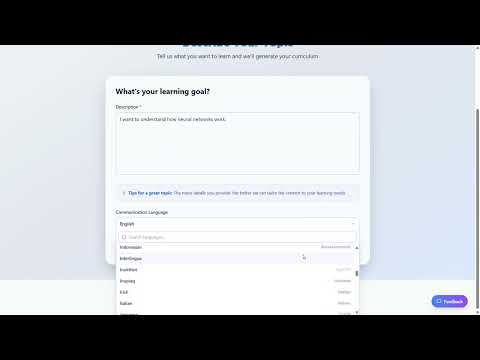
Best when you have a concept in mind but no formal materials yet. Simply describe what you want to learn — for example, "I want to understand how neural networks work" or "Prepare me for the AWS Solutions Architect exam."
The AI will generate a structured roadmap of sub-topics, ordered from foundational to advanced. Each sub-topic becomes its own learning module.
✅
Be specific. "Machine Learning" is broad. "Supervised learning algorithms for classification tasks" gives the AI a sharper target.
Method 2: Upload Resources
Have a PDF, lecture notes, or a study guide? Upload it. The AI reads your material and extracts the key sub-topics automatically — no highlighting, no re-reading, no decision fatigue.
This is especially powerful when you have course materials but no clear structure. The AI builds the roadmap so you can stop guessing and start moving.
ℹ️
Supported formats include PDF files and plain text documents. The AI processes the content to identify discrete, learnable sub-topics.
✅
Uploading resources uses significantly more credits than describing a topic, because the AI needs to read, analyze, and structure your entire document. If you're watching your credit balance, consider using Describe Topic for straightforward subjects and saving uploads for complex material where the document itself adds real value.
Choosing Your Explanation & Quiz Language
During topic creation, you'll be asked to select the language for your explanations and quizzes. This is the language the AI will use to teach you — all Explain Mode content, knowledge checks, and Quiz Mode questions will be generated in this language.
This setting is independent of your interface language and your source material. For example, you can upload a textbook in English but choose to receive explanations in German. The AI reads the original material and teaches you in the language you selected.
Topic Setup
Choose Your Learning Language
Select the language for explanations and quizzes
🇬🇧
English
English
🇪🇸
Spanish
Español
🇫🇷
French
Français
🇩🇪
German
Deutsch
🇮🇹
Italian
Italiano
🇵🇹
Portuguese
Português
🇸🇦Arabic (العربية) also available
Continue with Deutsch →
Language selection during topic creation — choose the language for your AI-generated explanations and quizzes
ℹ️
Pick the language you think in. Learning in your native tongue helps you focus on understanding the subject itself rather than translating as you go. For more on how language support works across the platform, see Languages & Accessibility.
What Happens After You Create a Topic?
Regardless of which method you choose, the AI breaks your subject into bite-sized sub-topics. You'll see your entire roadmap laid out — no more guessing what comes next. The sequence is built in.
From here, you choose how to engage with each sub-topic:
You can use both modes in any order. Many learners start with Explain Mode to build understanding, then switch to Quiz Mode to validate their knowledge — but the choice is yours.
✅
You're not someone "trying to figure it out" anymore. You're the student with a structured plan. That's a different person — and they get different results.
Watch: How to Create Your First Topic
Watch Tutorial
ℹ️
Everything about what you can upload, the size limits, and what to do when a file will not go through: Studying From Your Own Notes