Quiz Mode: Prove What You Know
Reading is not knowing. Quiz Mode closes the gap between "I think I get it" and "I can prove it."
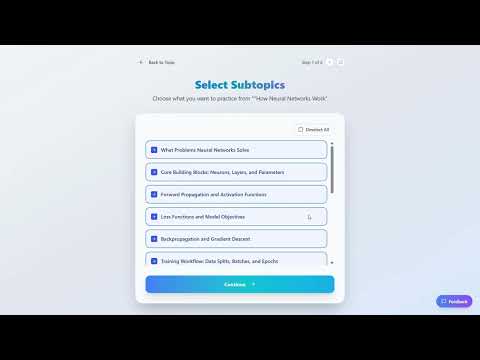
Quiz Configuration
Customize your quiz experience
Question Types
Quiz Mode adapts to the material with a mix of question formats:
- Multiple Choice — Select the correct answer from a set of options. Tests recognition and elimination skills.
- True / False — Evaluate a statement and decide whether it's correct. Quick and focused — great for reinforcing key facts.
- Open Ended — Write your answer in your own words. The AI evaluates your response for accuracy and completeness. This is where real understanding shows.
- Fill in the Blank — Complete a sentence by supplying the missing word or phrase. Tests precise recall without giving you options to choose from.
The "I Don't Know" Button
This is the most underrated feature in the entire app.
When you see a question and genuinely don't know the answer, press "I Don't Know." The AI records that honestly and adjusts accordingly. Why is this powerful?
"Explain This" — AI Explanations Inside Quiz Mode
When you tap "I Don't Know", the answer panel reveals along with an "Explain This" button. Tapping it calls the AI to generate a focused, in-context explanation of the exact concept the question is testing — without leaving quiz mode.
The correct answer is revealed along with the "Explain This" button.
The AI generates a short, targeted explanation focused specifically on the concept behind that question. The explanation loads inline — you stay inside the quiz.
Use "Back to Question" to return to the question (the explanation stays cached — tapping "Explain This" again shows it instantly with no extra credit cost). Tap "Next Question" when you're ready to move on — this clears the explanation for the next question.
Your Score Breakdown
After completing a quiz, you'll see a detailed breakdown:
- Overall score — Your percentage of correct answers.
- Per-question analysis — Which questions you got right, wrong, or marked as "I Don't Know."
- Weak areas — Specific concepts flagged for review.
- Next Steps — The AI recommends whether to proceed to the next sub-topic or revisit specific chunks in Explain Mode first.
Next Steps Recommendations
Based on your score, the AI suggests one of two paths: advance to the next sub-topic if you've demonstrated mastery, or return to Explain Mode for targeted review of the concepts you missed. This loop — Explain, Quiz, Review — is the engine that builds durable knowledge.