Learning Plans
Organise multiple courses into a structured curriculum and track your full learning journey in one place.
What is a Learning Plan?
A Learning Plan is the highest level in your learning hierarchy:
Learning Plan → Courses → Topics → Sub-Topics
Think of a Learning Plan as a full curriculum or syllabus. For example, a "Full-Stack Web Development" plan might contain courses on HTML, CSS, JavaScript, React, Node.js, and Databases — each course building on the previous one.
Creating a Learning Plan
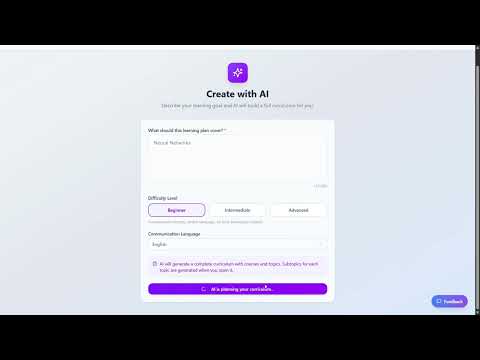
Creating a Learning Plan with AI
Instead of building your curriculum manually, you can let AI generate a complete structured plan from a single description.
Adding Courses to a Plan
On the Plan Details page, tap the + Add Course button. A panel opens with two tabs:
- Create New — enter a title and description to create a brand-new course that is immediately assigned to this plan.
- Add Existing — pick from any of your standalone courses (courses not yet assigned to any plan).
Reordering Courses
Drag and drop courses using the ⠿ grip handle on the left side of each course row. The order is saved automatically when you release.
Removing Courses from a Plan
Tap the ✕ button on any course row to remove it. For bulk removal, tap Select in the header, check multiple courses, then confirm removal. Removed courses become standalone and are not deleted.
Tracking Progress
The progress bar on a plan reflects the combined completion of all sub-topics across every course in the plan. Progress updates in real time as you complete sub-topics.
- Plan-level progress = completed sub-topics ÷ total sub-topics in all courses.
- Each course inside the plan shows its own independent progress bar.
Plan Exam
Once your plan has courses with content, tap the Plan Exam button to launch a comprehensive exam that spans all courses in the plan. The exam setup lets you:
- Select or deselect individual sub-topics (grouped by course → topic).
- Choose question types, difficulty, and time limit.
Exam results are saved to your history and include an AI-generated performance summary with strong areas, weak areas, and recommended next steps.
Deleting a Learning Plan
Scroll to the bottom of the Plan Details page and tap Delete Plan. You will be asked to confirm. Your courses are not deleted — they become standalone courses and can be added to a new plan at any time.